This post details the installation and configuration of the vRealize Suite Life Cycle Manager 1.2 which was recently released by VMware to automatically provision vRA components as part of their Cloud initiative.
First, Download the Life Cycle Manager ova from the vRealize Suite 2017 components and deploy it using the vCenter web client

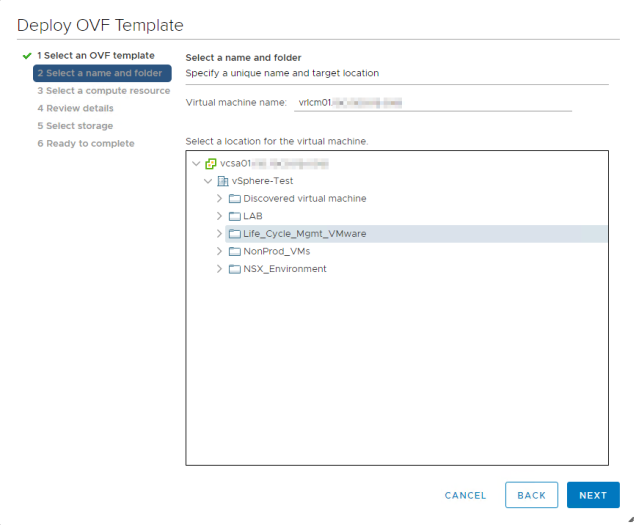

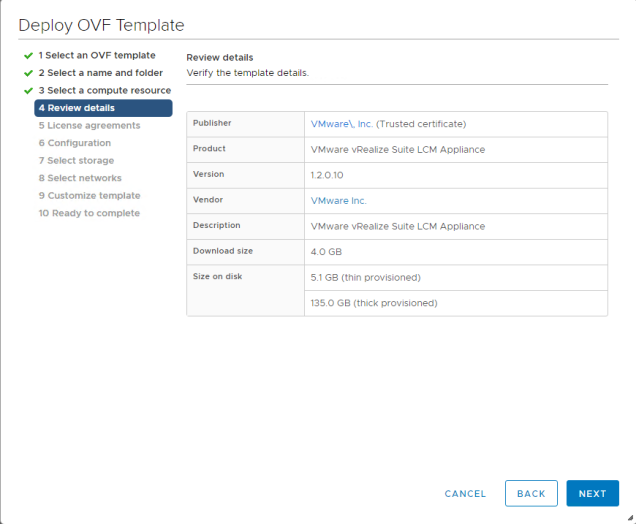
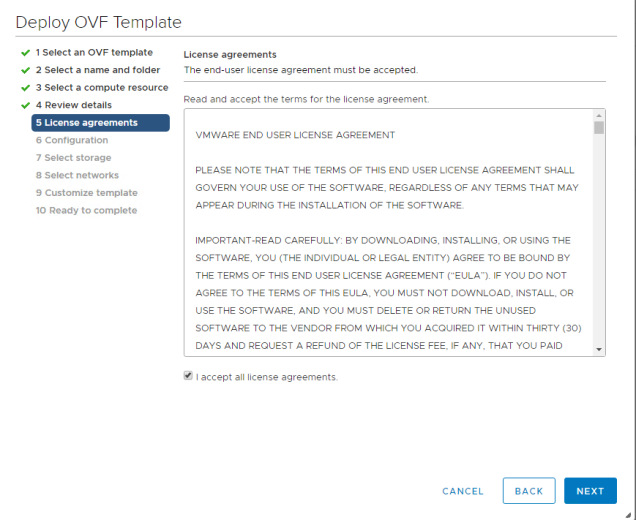


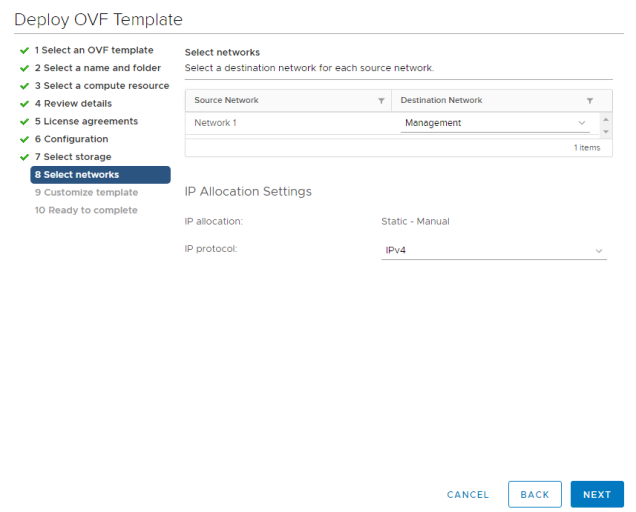


Once the vm has been deployed and powered ON, you will have to go to a web browser to configure the appliance.
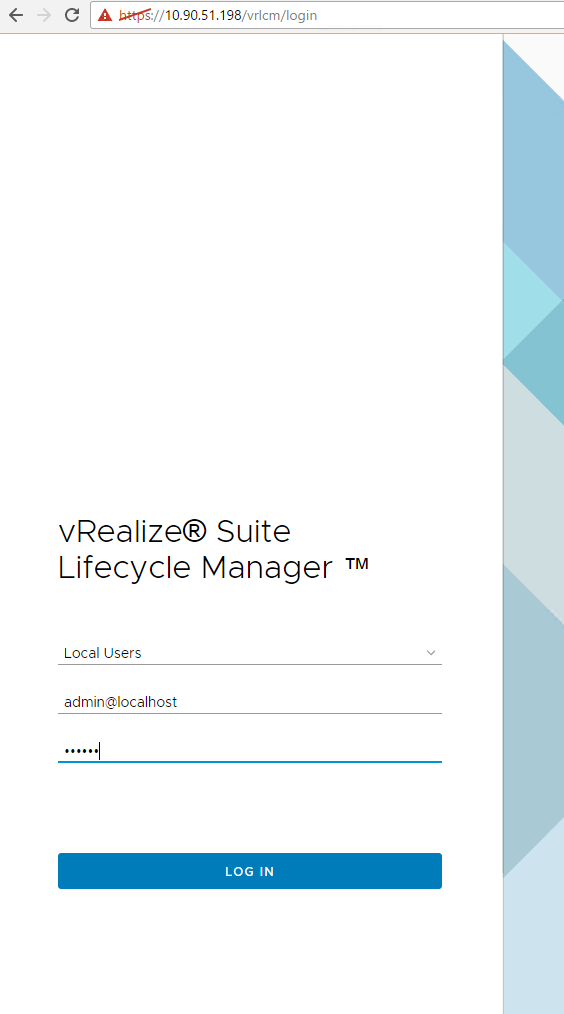
https://IP_Address_of_the_Appliance/vrlcm

use the following credentials to login into the life cycle manager web UI
username: admin@localhost
password: vmware

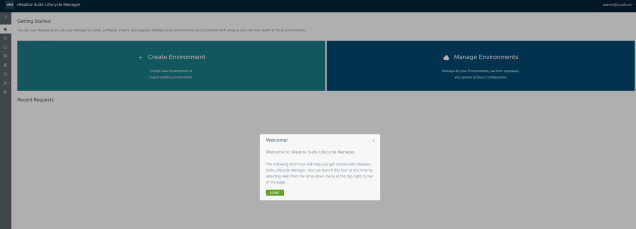
Click start to get started with the Life Cycle Manager

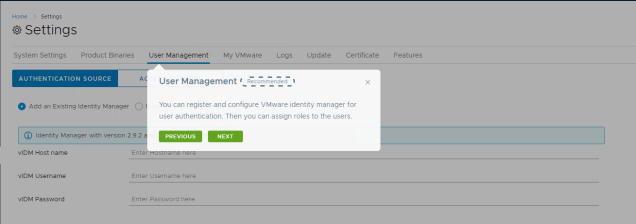


Now, we will create a New Environment in the lab
Click on Create Environment option to get started
Once you click on Create Environment option, you will be taken to a tab where it mentions that you will need to take care of a few things before you create the environment.
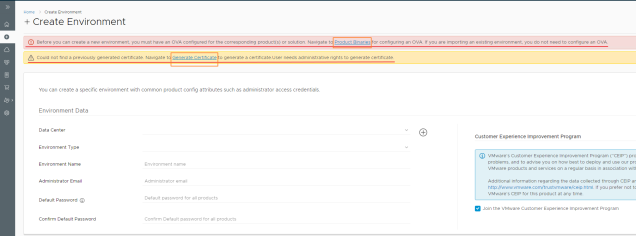
Let us take care of the Product Binaries first.
Click on Product Binaries option on the tab
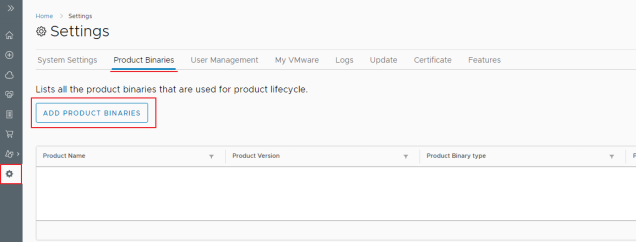

Once you add the product binaries, let’s go and create a Certificate

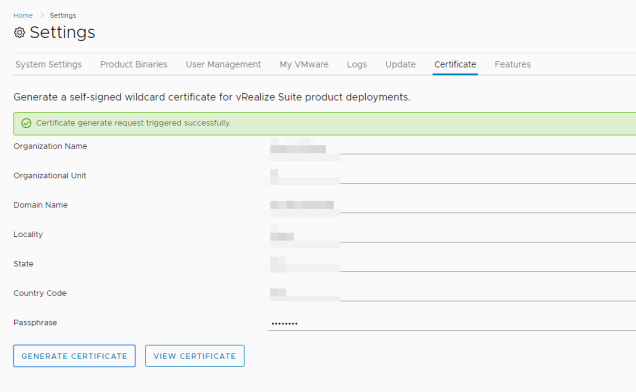
Once these two pre-requisites are done, Let us move ahead …
On the main page, click on the Datacenters option on the left-hand side to create a Datacenter before we create the environment


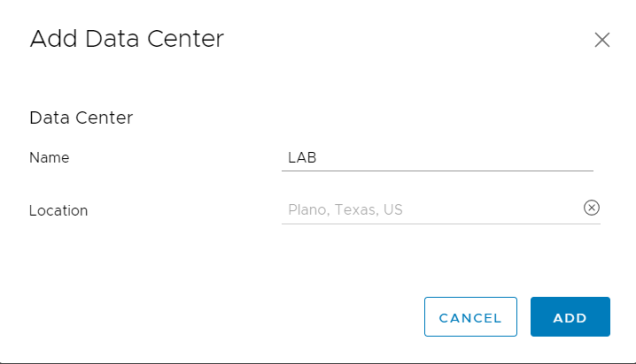
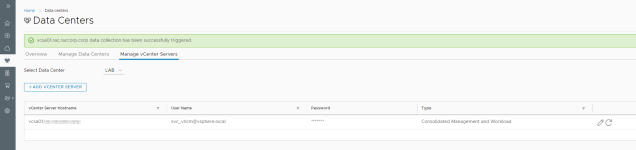
Next, we add the vCenter server


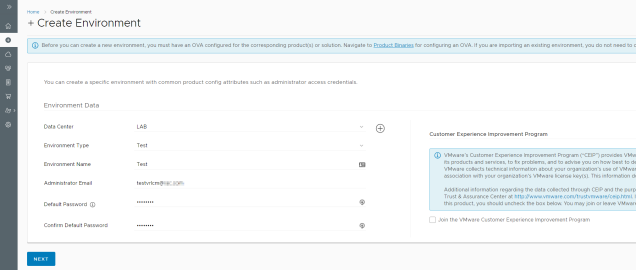
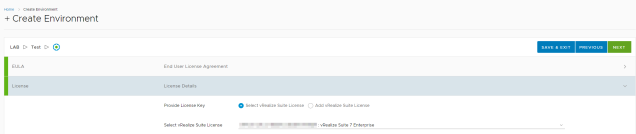
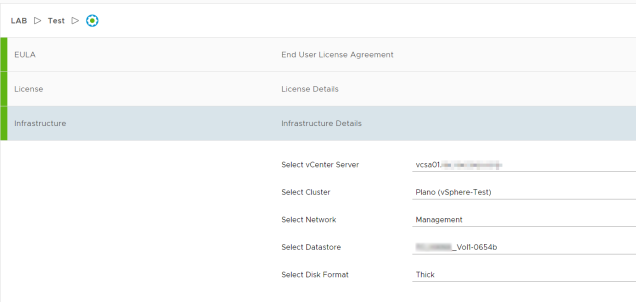
Now, Let us go ahead and create an Environment


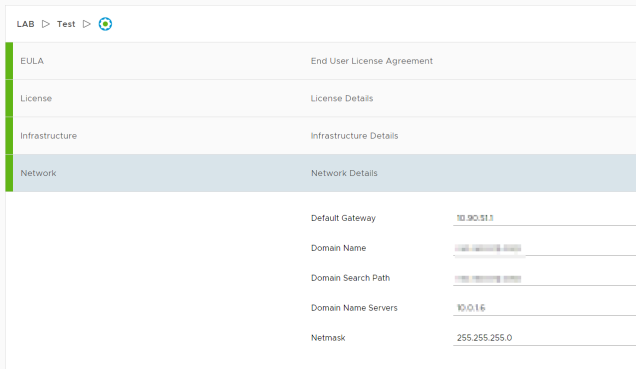
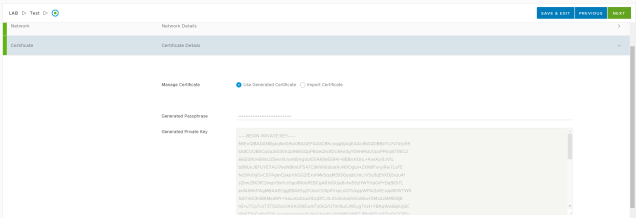

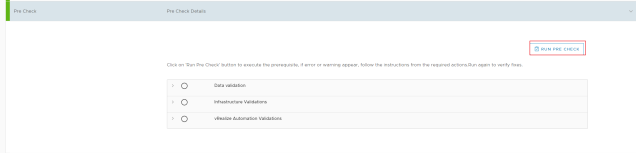
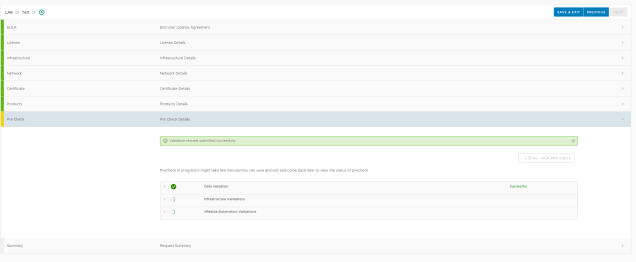
In this pre-check, you could get a validation failure which will need to be rectified before you run the pre-check again. its like shown in the picture below

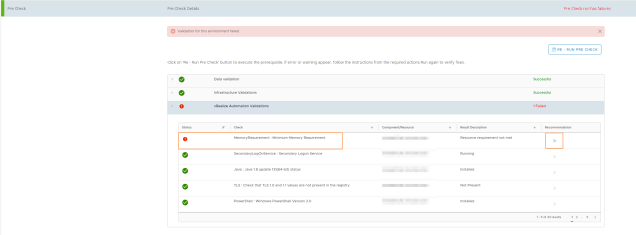
Once you rectify the issue, run the pre-check again

Once the pre-check comes back clean, click on Next to move ahead

Click Submit and the life cycle manager will do the rest.
to check the progress, you can click on Requests icon on the left side of the page and clicking on in progress as the pic below

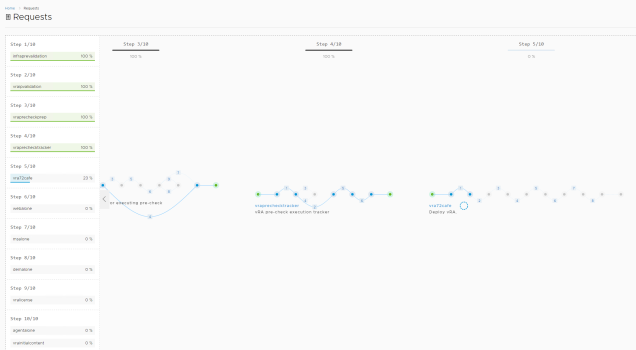
This process will take a long time … go, get some tea/coffee and it will still be deploying the environment …
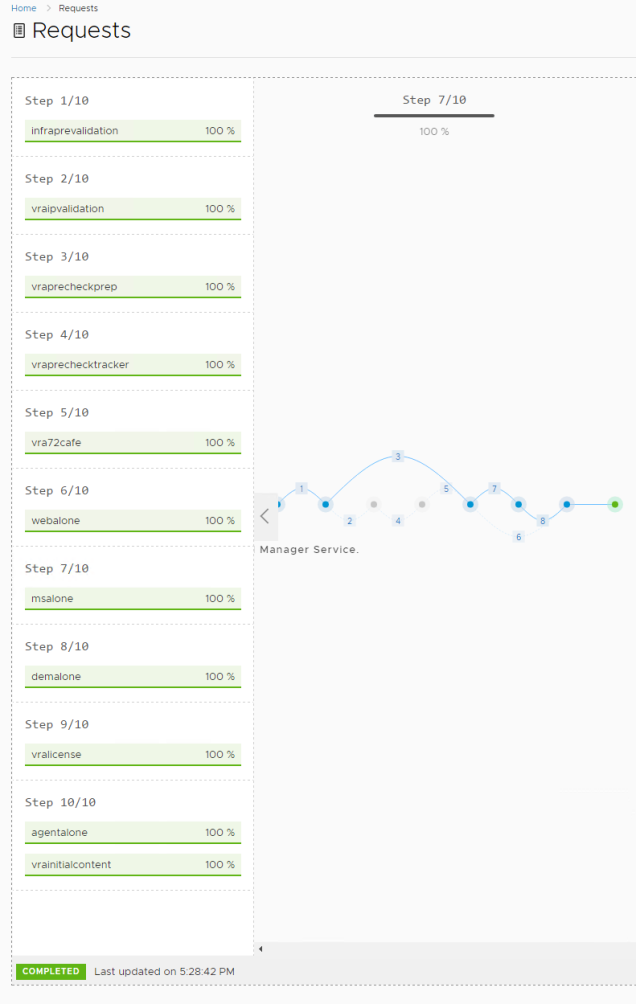

This shows how to Install and configure vRealize Life Cycle Management and to create a vRA 7.4 environment.
 Hyperconverged Infrastructure & Virtualization
This is truly useful, thanks.
LikeLike
Awesome write up Pradeep. Am sure we will all benefit from this post!!!
LikeLike
Thank you!
LikeLike