Fixing SDDC Manager Inventory Sync Issues for ESXi Hosts

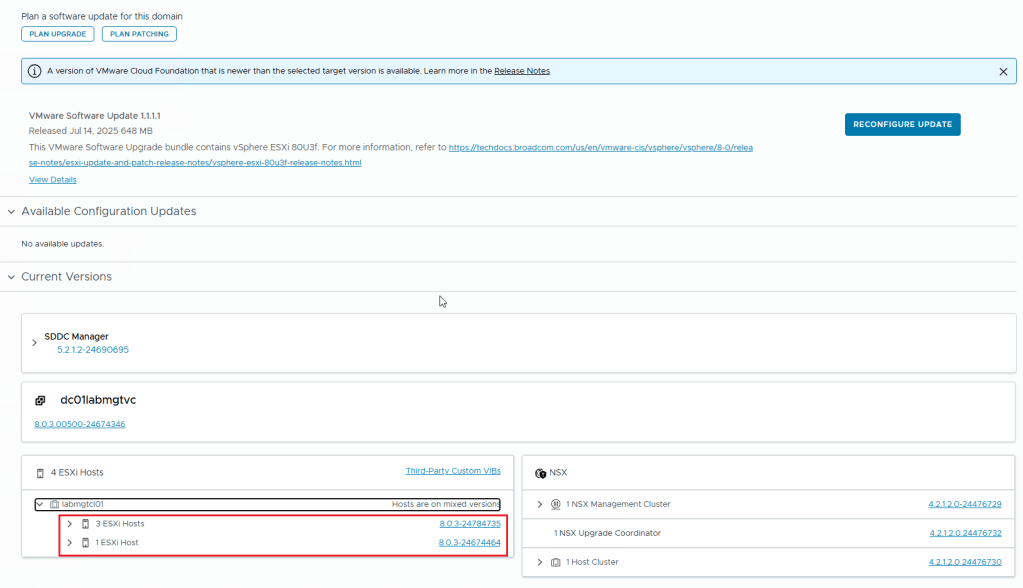
I recently encountered an issue in my lab. I was trying to patch my ESXI hosts from version 8.0U3b/3d to 8.0U3e/f. I used the SDDC Manager and an Imported LCM Image (Dell Custom ESXI Image). The task was failing at Post check like in the below Screenshot

On digging a little deeper into the issue, I found the SDDC Manager Inventory Sync to be the problem. The ESXI Hosts Upgrade is done. Yet, the SDDC Manager does not register that all the ESXI hosts in the cluster have finished upgrading. As a result, it fails.

As you can see in the above image, SDDC Manager doesn’t see the proper host version. This issue affects all the ESXI hosts in the same cluster.

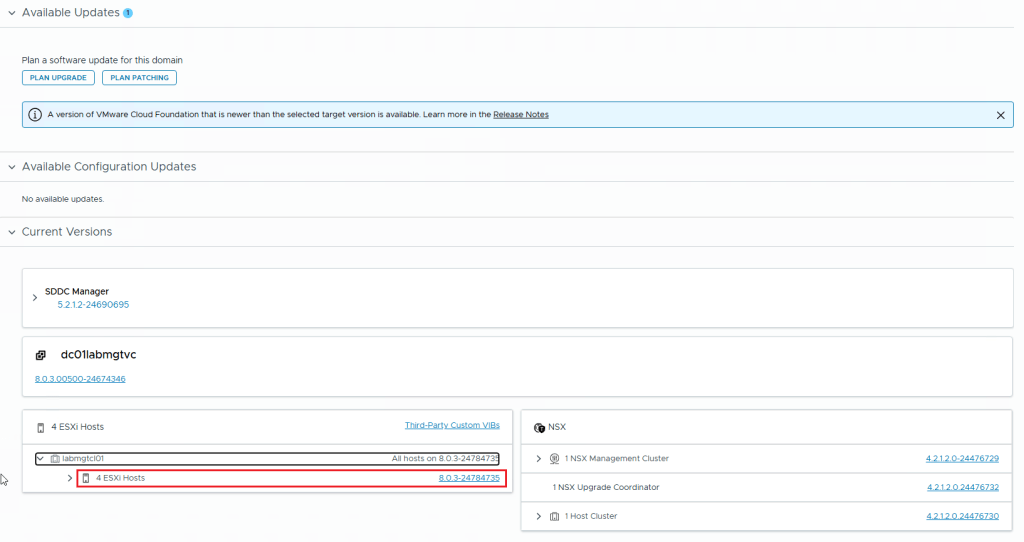
I did verify that all the 4 hosts are of the same version (In this instance the version is 8.0.3-24784735)

This issue can be resolved by performing an Inventory sync from within the SDDC Manager. Use the asyncPatchTool for this task. You can download it from the Broadcom website. Here are the Instructions on how to download the async patch tool from the broadcom website.

** You need to have an active entitlement to get this tool. **

Once you download the asyncPatchTool, transfer the tool (vcf-async-patch-tool-1.2.0.0.tar.gz) to /home/vcf directory in the SDDC Manager using WinSCP tool.

Make Sure you follow the instructions in this document in regards to the asyncPatchTool folder and then go to SDDC manager SSH and use the following commands to perform an inventory sync using the asyncPatchTool

./vcf-async-patch-tool --sync --sddcSSOUser administrator@vsphere.local --sddcSSHUser vcf

(Assuming your sddc manager sso account is administrator@vsphere.local)

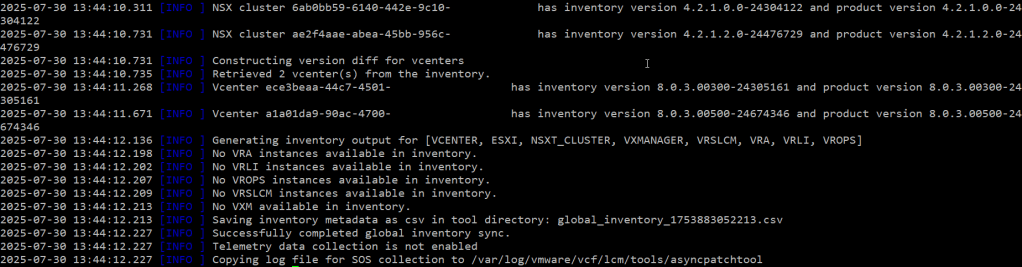
As you can see from the above screenshots, perform an inventory sync using the asyncPatchTool. The correct versions of ESXI hosts and other products appear in the output.

In the below screenshot, you can see that I ran the asyncPatchTool Inventory sync. Then I checked the SDDC Manager. My ESXI hosts are all showing the correct version.

This concludes this article.

NSX BGP Peering Issue in Holodeck 5.2x Workload Domain

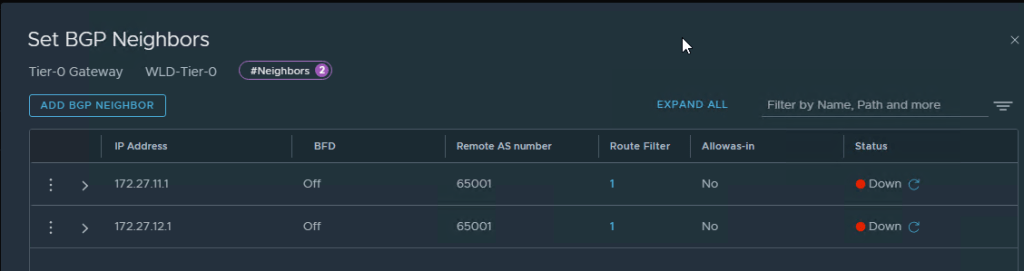
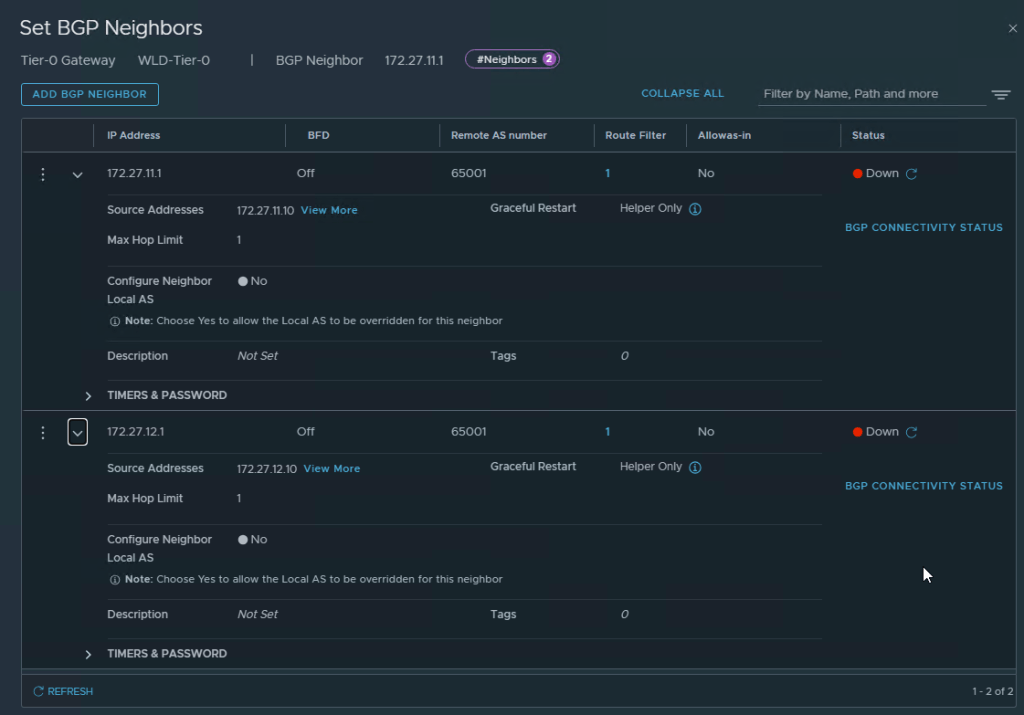
Recently, while I was deploying an NSX Edge Cluster in the Workload domain in the Holodeck 5.2x (I deployed VCF 5.2.1) when I encountered an error in SDDC Manager “Verify NSX BGP Peering” which failed the Adding Edge Cluster task.

Here are the screens on how it looked once I logged into NSX Manager Web UI

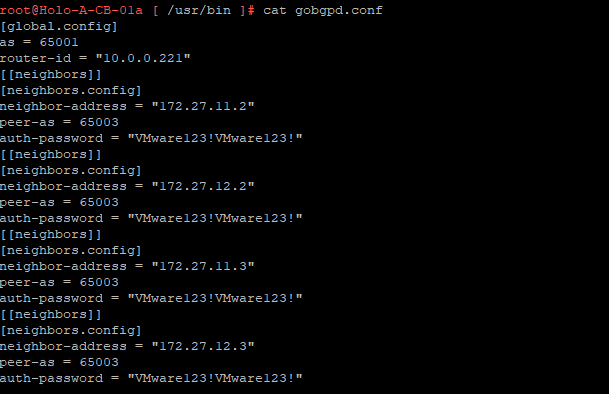
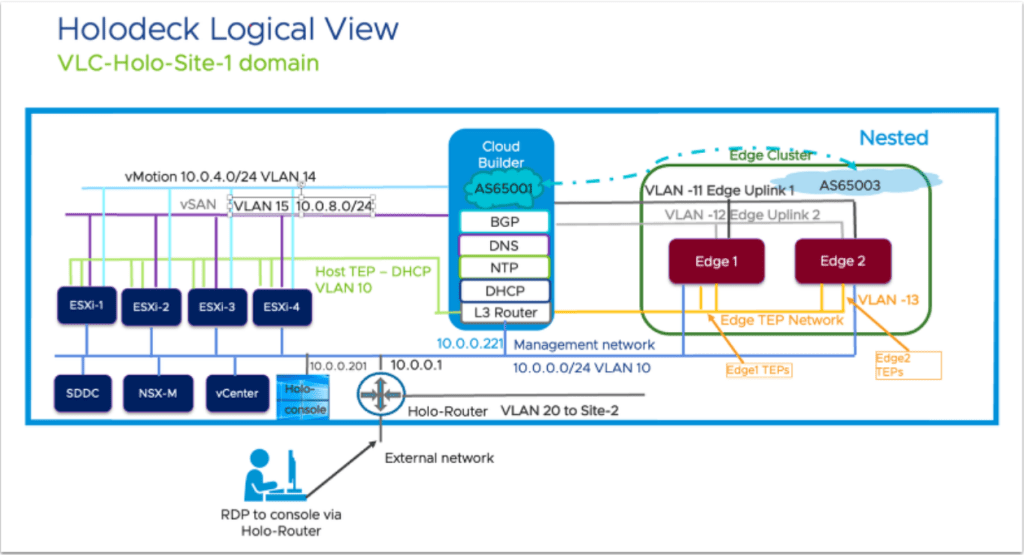
After a lot of troubleshooting, I got some help from my fellow vExpert Abbed Sedkaoui who directed me to check the BGP Configuration in CloudBuilder and the config file to check was the gobgpd.conf file in /usr/bin

Edit this gobgpd.conf file and add the Tier-0 Uplink Interfaces as BGP Neighbors in this file as the below Screenshot

Once the file is saved (You will have to hit ESC and then type :wq!, hit Enter), you can restart the gobgpd service with the following command

systemctl restart gobgpd

This will restart the gobgpd service and in a few minutes you should see the BGP Neighbors going green instead of down status in the NSX Manager UI

here is the command to check the gobgpd status in cloud builder

systemctl status gobgpd

NOTE: All the above commands are to be executed as root in the cloudbuilder appliance, first you SSH into the appliance using admin credentials and then use su to login as root in the appliance. (su creds are same as admin creds in the holodeck lab)

Now you can restart the NSX BGP Peering task again in SDDC Manager and it should go through and create the Workload Domain.

How to Add NSX Edge Cluster to the Workload Domain in SDDC Manager

This post is a continuation to the one which I made on How to Create a Workload Domain in the SDDC Manager.

Login into the SDDC Manager, Go to the Workload Domain which you have created (In my case the workload domain name is wld-domain), go to the Edge Clusters tab

Ignore the Errors in my lab, that’s just license errors in the lab env.

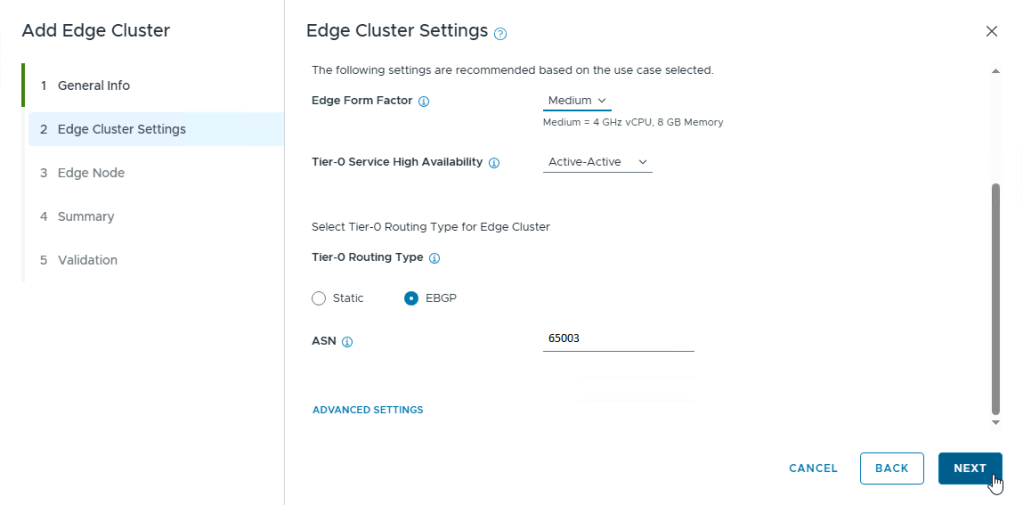
Click on Add Edge Cluster option as in the screenshot below

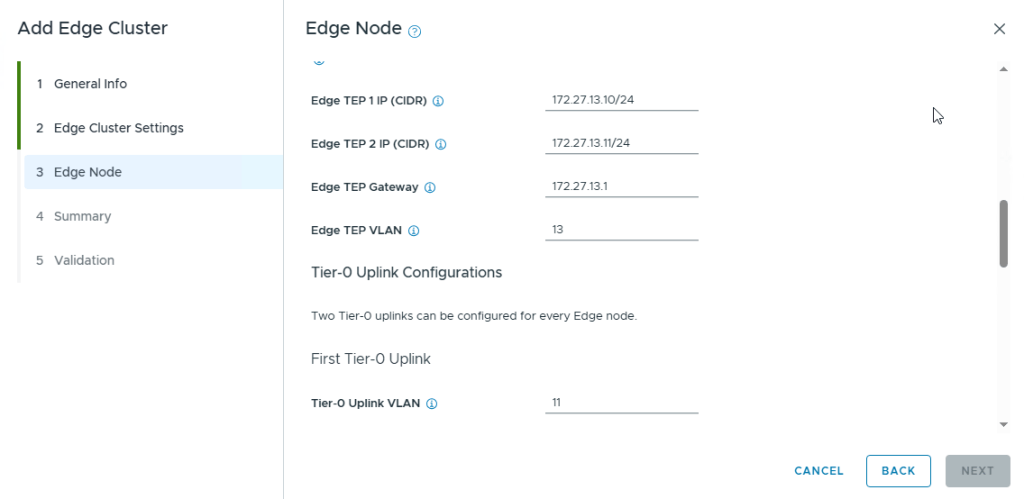
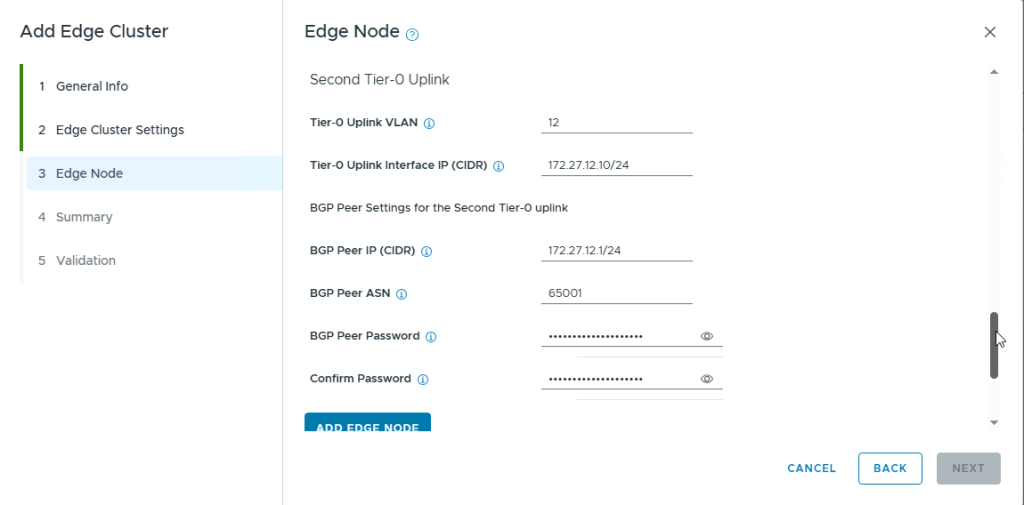
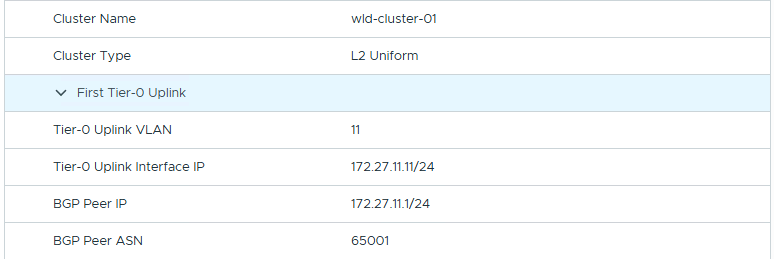
Perform the same steps to add the Edge Node 2 as well but with its own IP Addresses

Once everything is Validated with no errors, it will start the Deployment of the Edge Cluster with Edges in the workload vcenter

This Concludes this post on how to deploy NSX Edge Cluster with 2 Edges in the Workload Domain using SDDC Manager

I have encountered an issue while deploying the NSX Edge Cluster in the workload domain in Holodeck and that is while it was trying the NSX BGP Peering Verification from the SDDC Manager and the BGP Neighbors were down. This was not provided in any documentation and I have documented about this issue and its resolution in this post.

Architecting Your Microsoft SQL Server Workloads on VMware Cloud Foundation

Introduction:

I have attended this session in Explore 2024 Las Vegas and here is what I have learnt from this session in regards to architecting Microsoft SQL Server in the vSphere Environment. Even though the session heading shows that it is about VCF ( VMware Cloud Foundation), the reality is that these suggestions and recommendations are for vSphere. VCF is a combination of vSphere, VSAN, NSX and Aria Suite.

NOTE: I know its already close to VMware Explore 2025 but I found these on my phone from last year’s Explore and wanted to Post before I totally forget about these options in regards to SQL Server and its Performance on vSphere.

Below are few of the improvements to be made to the SQL Server VMs and VMware Best Practices (As shown in Explore 2024)

NUMA: Recommended VCPU Configuration

Storage Best Practices

Best Practices for VM Disk Layout

Network Best Practices

SQL Server High Availability Options

Power Management of the VMs

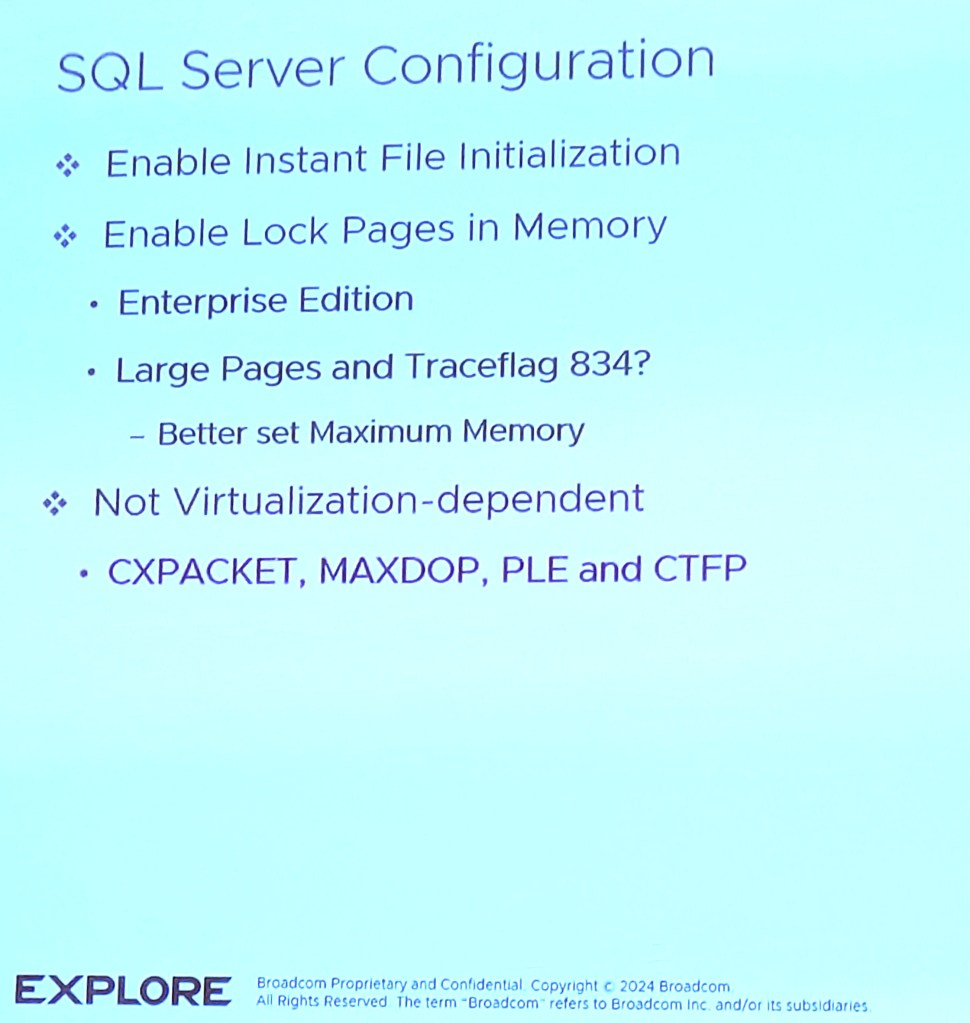
SQL Server Configuration

SQL Server High Availability

Windows RSS Options

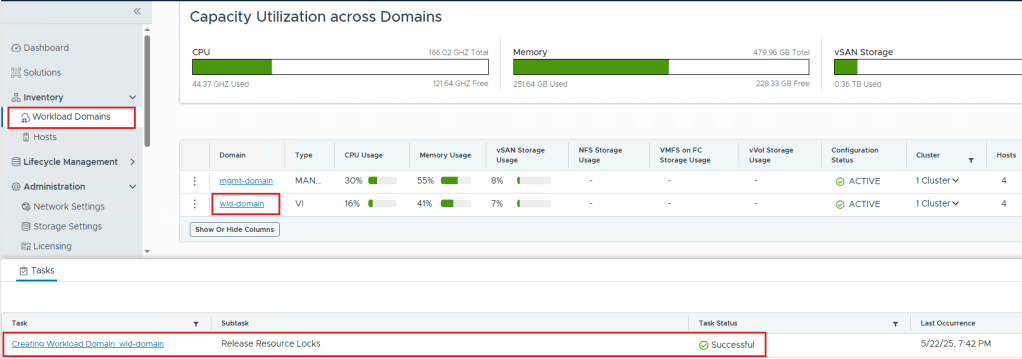
Deploying Workload Domain in Holodeck Toolkit 5.2x

In this post, I will be going over how to deploy a workload domain in the holodeck lab if you have only deployed the management domain with NSX Edge Cluster configured in it by using VLC GUI

In my lab, I was unsuccessful the first try in getting VLC GUI to deploy the workload management with NSX Edge Cluster in it, so I only deployed the management domain and then configured the workload domain using the SDDC Manager.

First, you will have to use “add_4_big_hosts_ESXi5-8.json” or “add_4_hosts_ESXi5-8.json” using the VLC GUI to provision 4 nested esxi hosts esxi5-esxi8 in the lab env.

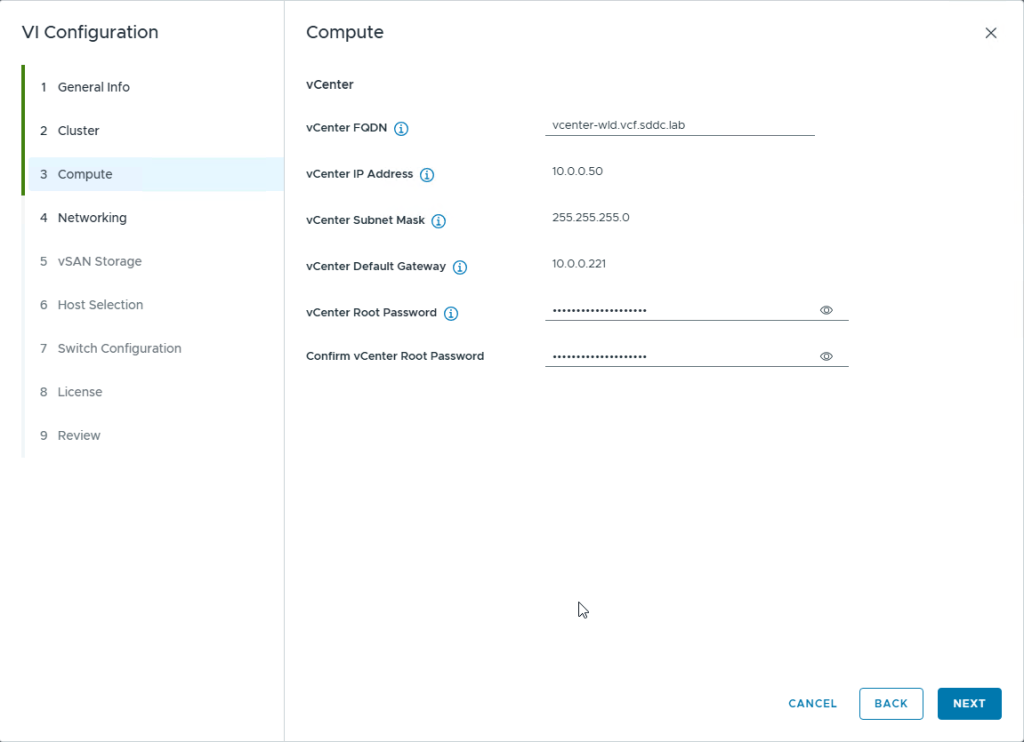
Once the hosts are created, you will have to use the commission hosts option under Hosts in SDDC Manager to get the 4 esxi hosts into the SDDC Manager. Once the 4 esxi hosts are unassigned in the SDDC Manager, we will start the creation of the workload domain using the SDDC Manager.

NOTE: The SDDC Manager will only deploy 1 NSX Manager Appliance nsx1-wld even though you provide the network details for all 3 managers

Next Post will be on How to Add an NSX Edge Cluster to the workload domain.

How to Fix the Certs Error in vCenter 8.x in VCF 5.2

Recently we had an issue in our production environment vcenters to renew the Machine SSL Cert and I was not able to do it using GUI in vcenter as it was showing an error message:

you can see in the above screenshot the error message it was showing when trying to renew the Machine Cert from the vCenter UI.

We checked the output from the vdt python script which we can get from the KB article (KB Article 90561) which shows the complete health of the vcenter server.

by looking at the FAIL checks in the machine certs on the vcenter, we decided to use the fixcerts.py script from the KB article 90561. This KB article lets you download a python script which can be used to fix the expired certs or to replace all the certs. We have decided to go and replace all the certs as our vcenters which are part of VCF 5.2 were upgraded from previous VCF Versions and the certs on the vcenter was created by External PSC’s in vSphere 6.7 a few years ago which don’t exist because the PSC’s are now embedded in the vcenter itself.

we had to use the fixcerts.py script to regenerate all the certs on the management and workload domain vcenter.

after regenerating and renewing the machine cert on the vcenters, we faced another issue with SDDC manager not able to recognize the vcenters because of their Cert changes. We will discuss this issue and its resolution in another post coming up.

502 Bad gateway when trying to access SDDC Manager Web UI

Introduction:

Recently I received a 502 Bad Gateway error when trying to access the SDDC Manager UI. This happened after Upgrading our VCF Environment from 4.5.0 to 5.1.1

After going through multiple troubleshooting steps, here is what I have done to resolve this issue.

Troubleshooting:

First things first, please check the volumes on your SDDC Appliance.

SSH into the appliance using the user vcf and then root and use the following command

#df -h

The above screenshot shows the output to check all the volumes on the sddc manager appliance.

In this case, the /data volume is at 100% capacity and that was causing the UI not to load. So, I dug a little deeper into this volume to see what was occupying all the space in it and found this file which is occupying it.

Resolution:

After investigating the data volume, I did some research on the volume being full and found the following kb article from Broadcom, KB311989 which shows the way to increase the capacity of the /data partition and then to reboot the appliance to get it working.

I followed the steps in the KB article and once I increased the /data volume and rebooted the sddc manager, all the services came back up in the SDDC Manager and its UI was up.

Conclusion:

The issue was with the /data volume being full. Once we increased the capacity of this volume from the above KB, the UI Issue resolved itself.

Hope this article helps.

How To Reset an NSX-T API Local Account Password and Make the Account Active

In this post, let us see how to reset a password and make the account active in NSX-T.

Remember that this account was created using API as you can’t create local accounts using NSX-T UI. My NSX-T version is 3.2.2.x.x

Back Story: one of the local accounts which I created for skyline collector in our NSX-T environment password was expired. Hence, I had to use the API to Update the User account password and status to make the account ACTIVE again.

Use an API Editor like Postman to get the required data as shown in the screenshot below:

Your Image

In the GET field, you will be providing the following code.

https://<nsx-t hostname/IP-address>/api/v1/node/users/<user-id>

You can get the user-id pretty easily by going to System and User Management in NSX-T UI and get the user-id. In the above example my user-id is 10003. Then go to the Authorization tab and provide the username and password of the NSX-T Manager where you want to make these changes. Then click on Send option to get the required info.

you will get the data as the below screenshot.

You will observe that the last password has been changed 95 days ago, password change frequency is every 90 days, status is password expired and the actual username (in this case its labprdsky_nsxt)

you will have to change the body of this into the below values

{
"full_name": "Guest User1",
"last_password_change": 1,
"password_change_frequency": 999,
"old_password": "<old_password>",
"password": "<new_password>",
"password_reset_required": false,
"status": "ACTIVE",
"userid": 10003,
"username": "labprdsky_nsxt"
}

You can change the password_change_frequency from 0 to 9999, you will have to provide the old password which is expired and the new password for this account and change the status to ACTIVE.

We will copy the above code into the body of the next PUT statement as shown below

Change the GET to PUT and insert the above code with the changed values in the body as the screenshot shown above and click on Send

The output will be displayed as below

{
"full_name": "Guest User1",
"last_password_change": 0,
"password_change_frequency": 999,
"password_reset_required": false,
"status": "ACTIVE",
"userid": 10003,
"username": "labprdsky_nsxt"
}

The above output is in code form in case you want to copy it.

Now you can do the above GET command to get the status of the user and you will see that this account shows as active and the password change frequency is now 999 days.

Final output for GET for that user 10003

Hope this writeup helped you to unlock and reset the password of an local user created using API in NSX-T.

An Unexpected Error Occurred When trying to access the settings in Aria Suite Lifecycle Manager (8.12.x)

Recently, I have patched our Aria Suite Lifecycle Manager from 8.12.0 to 8.12.x Patch 2 from its web UI and encountered a strange issue where we were getting the following error when trying to get into any of the settings like ‘System Patches, System Upgrade, System Settings, DNS, NTP Servers, Binary Mapping’ etc., on the web UI.

Upon closer inspection, I couldn’t find anything wrong with the appliance itself or its services.

I even restarted the appliance with no success

I checked the vpostgres service, vrlcm-server service and they were active.

Resolution:

I stopped and started the vrlcm-service and this resolved the issue. I am not able to get into all the settings on the VRSLCM Web UI.

The above screenshot shows the commands to stop and start the service on the VRSLCM SSH Session.

Hope this helps if you come across this issue.