Generate Certificates with Enterprise CA in VCF Ops 9.1

This article is on How to Generate Certificates using your Enterprise CA and updating the certificate on VCF Operations version 9.1

First, we login into the VCF Ops Web UI, go to the Manage option, click on Certificates on the left side of the page, Click on VCF Managent option, select the VCF Operations on the right side of the page, click on the 3 dots and click on “Generate CSRs” option.
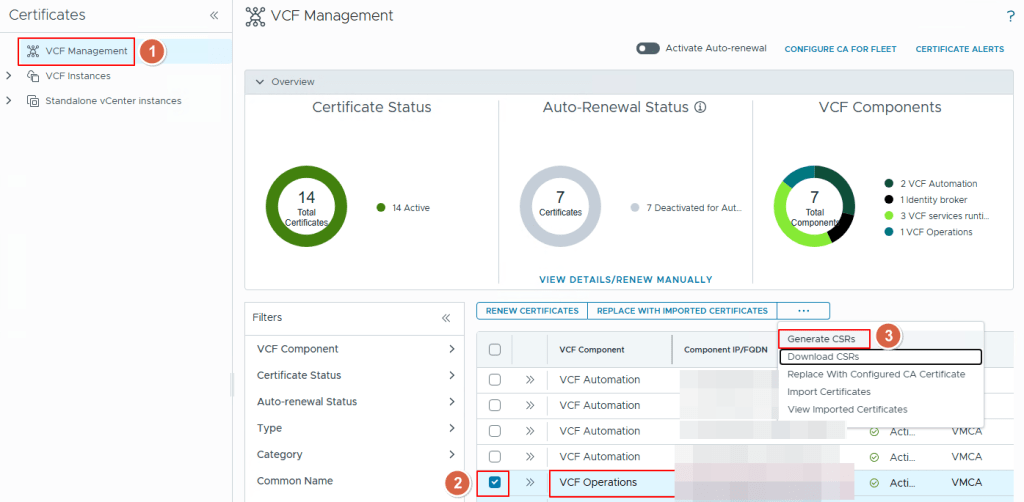
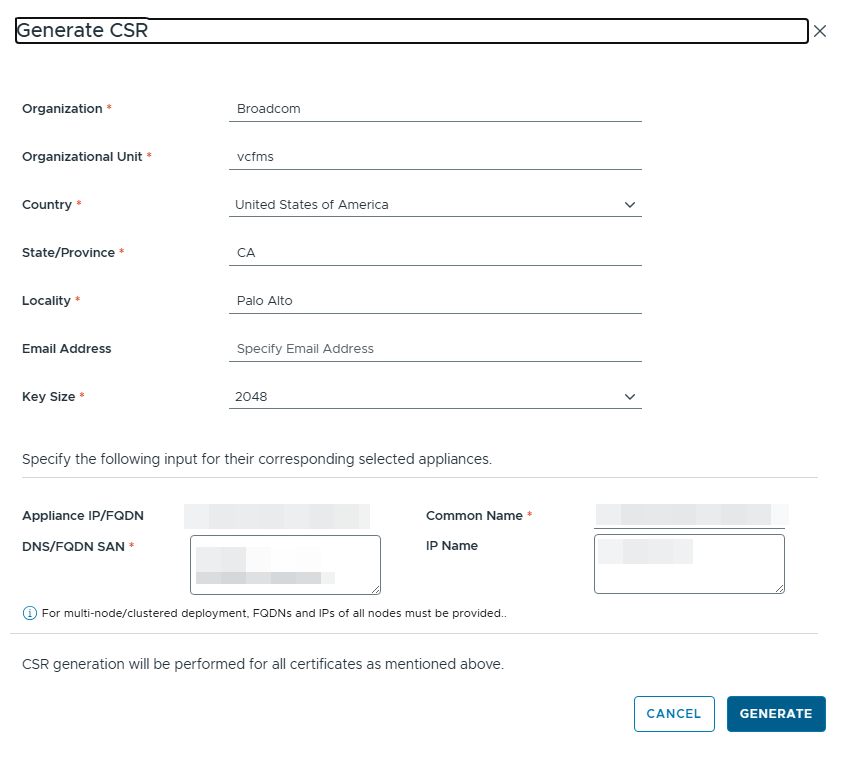
This will pop up another window in which you can provide all the details of the Certificate you require like the following:

Organization Name, Organization Unit, Country, State, Locality, Email Address, Certificate Key Size (which is 2048 by default) etc.

The Mandatory ones to fill in are:

Appliance FQDN/IP address, Common Name, DNS/FQDN SAN Names and the ones with a red asterisk next to the field.

Once you fill in all the fields, click on Generate to generate the CSR
This will generate the CSR internally in VCF Ops
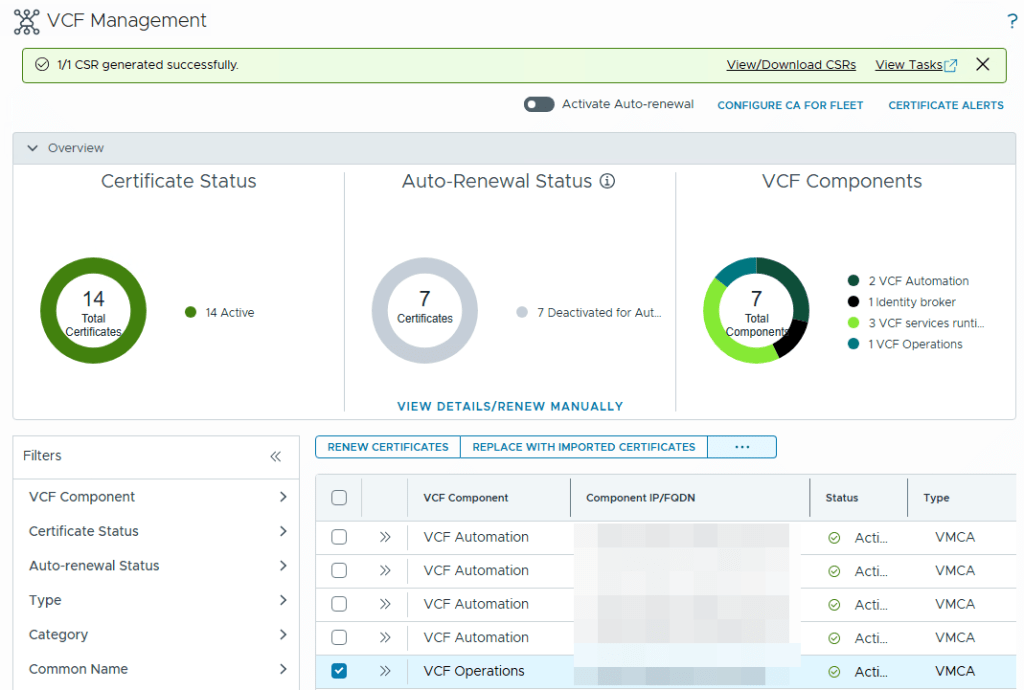
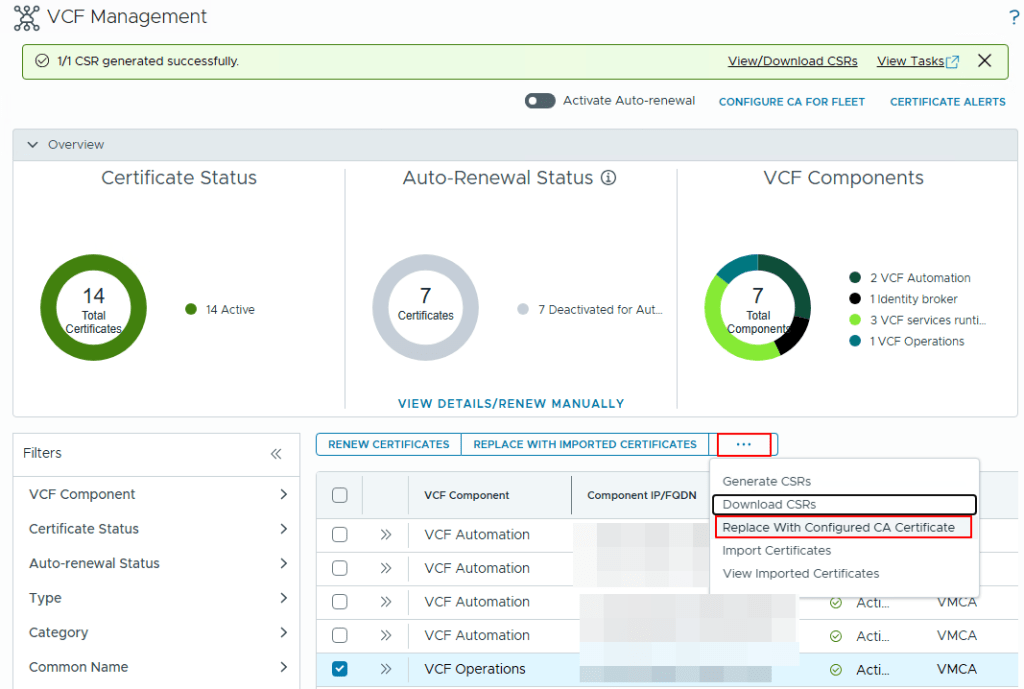
Once the CSR is generated, you click on the selected product (in this case VCF Operations), click the 3 dots again and click on the option to “Replace with Configured CA Certificate” as shown in the below screenshot
Follow the next steps to use the Microsoft CA which you have setup in the previous post – configure-enterprise-ca-in-vcf-operations-9.1
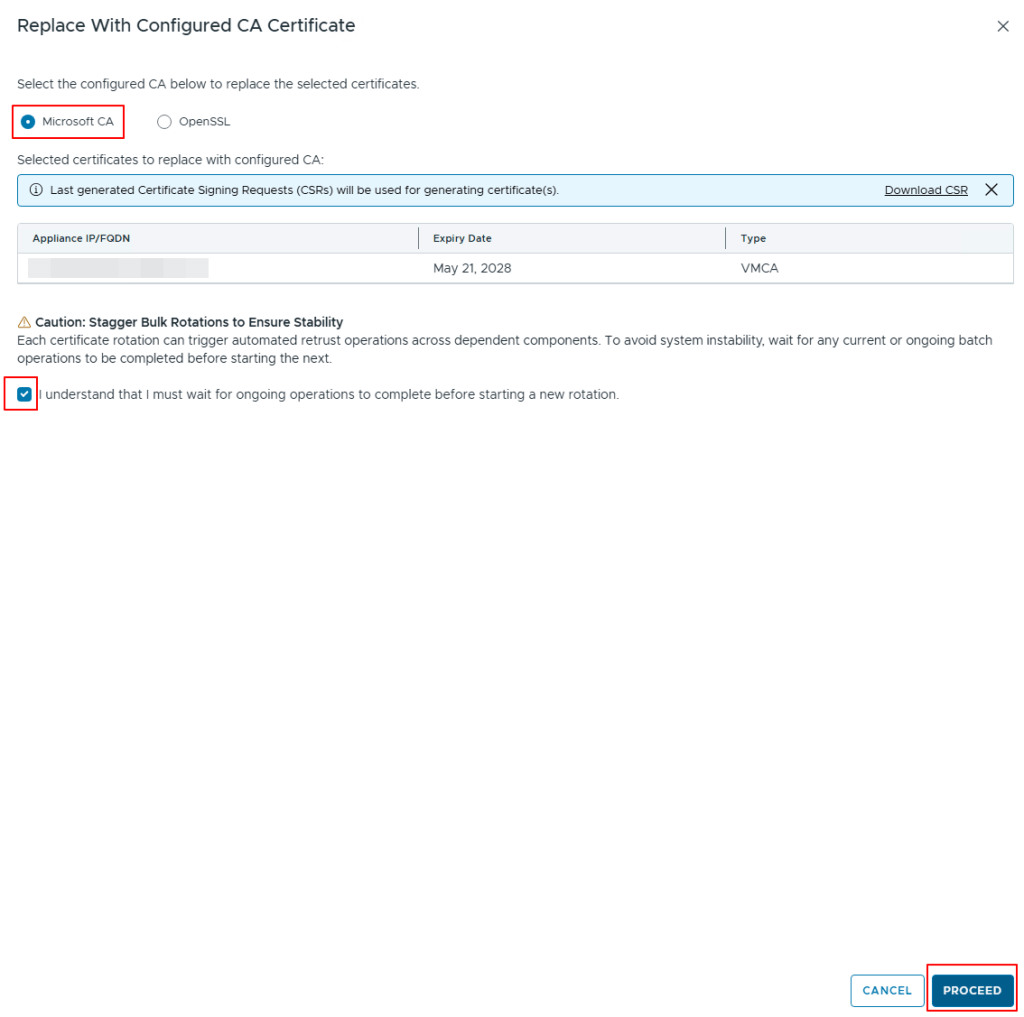
Click on Proceed option to replace the certificates on the VCF Operations, you can check the status of this on the Management Tasks page.
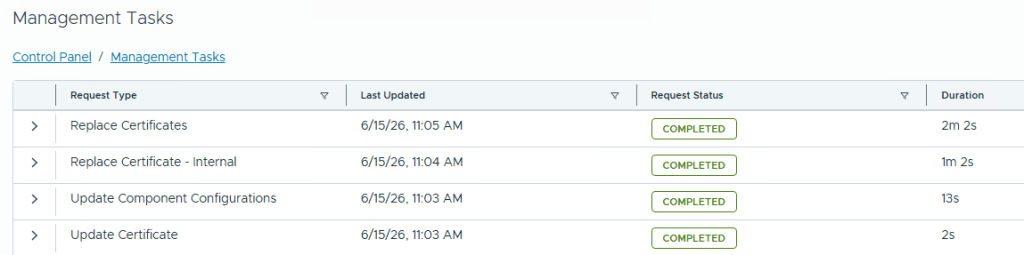
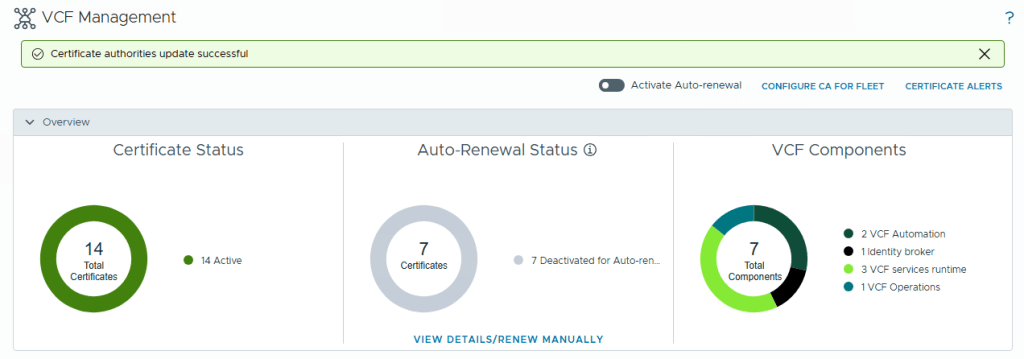
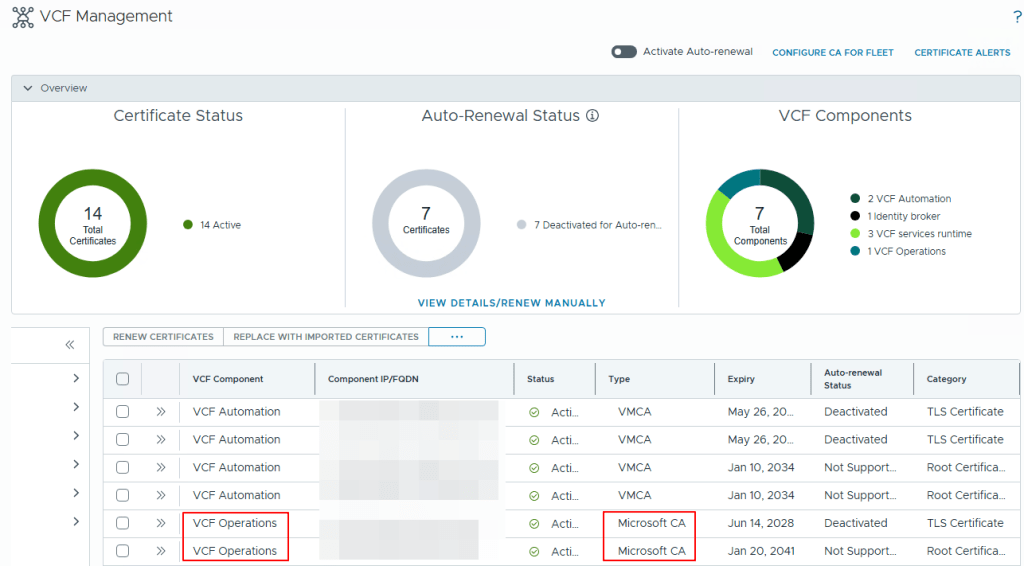
Once the task is completed, you will need to refresh the page to get the new certificate and you can go to the VCF Management, Certificates to check the Certificate Type to see that Microsoft CA is now mentioned instead of VMCA as shown in the below screenshot.
This Concludes this article on how to generate certificate from your enterprise CA and how to replace the certificate automatically on the VCF Operations.

NOTE: The names and FQDN’s have been Pixelated/Blurred for Privacy reasons, However the content is still true in the environment.
Configure Enterprise CA in VCF Operations 9.1

This article is on how to Configure Enterprise CA (Certificate Authority) in VCF Operations version 9.1 under Fleet Management

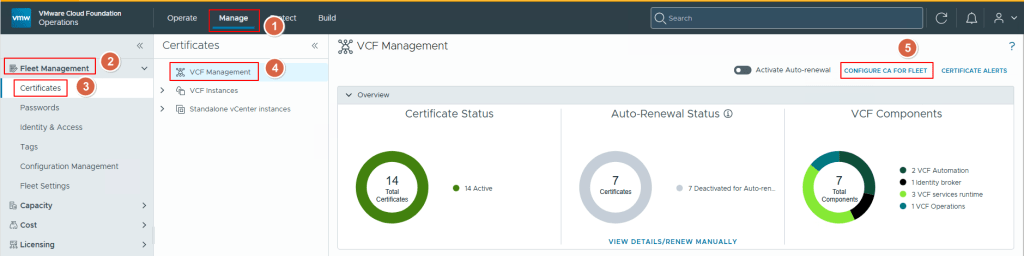
First, Login into your VCF Operations Manager and click on Manage option on the right side of the page, Click on Fleet Management on the left hand side, click on Certificates option, then on the right side of the page, click on VCF Management and then click on the option “Configure CA for Fleet” as shown in the screenshot below.

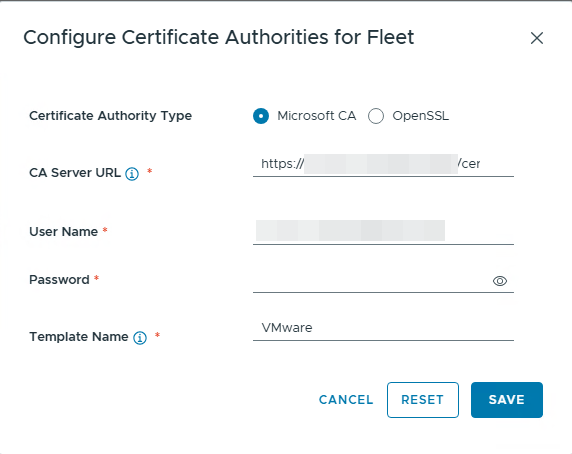
Fill in all the details of your Enterprise Certificate Server including the credentials to access the certificate server with permissions for that account to generate the certificates in the CA.

NOTE: Make sure that your CA supports https (Port 443) as the VCF Ops only supports https:// and NOT http

NOTE: The CA URL should be in the format https://<CA_Server_Name>/certsrv

Once its done, Click on Save to complete the configuration. Make sure the template name is Exactly what is configured on the Cert Server. It is case sensitive.

This will configure the CA for Fleet Management in VCF Ops.

You will need to configure the Enterprise CA according to this Doc — Install-microsoft-certificate-authority-roles-9-0

In the next article, we will see on how to generate certificates from the Certificate Authority which we added and how VCF Ops implements the certs on the VCF Products

Fixing VCenter Identity Provider Error in VCF 9.0.1

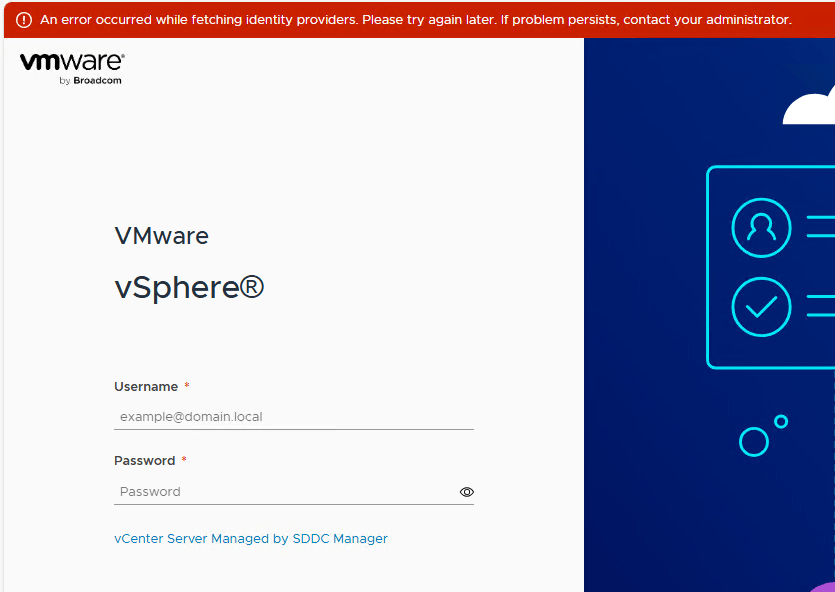
I recently came across an issue in our VCF 9.0.1 lab where in the management domain vcenter had an issue with its identity provider and the exact error was “An error occurred while fetching identity providers. Please try again later. If problem persists, contact your administrator.”

The error screenshot is as below

When this Issue occurred, we can’t login using our domain credentials into the vcenter and have to use the SSO creds to get into the vcenter

Solution:

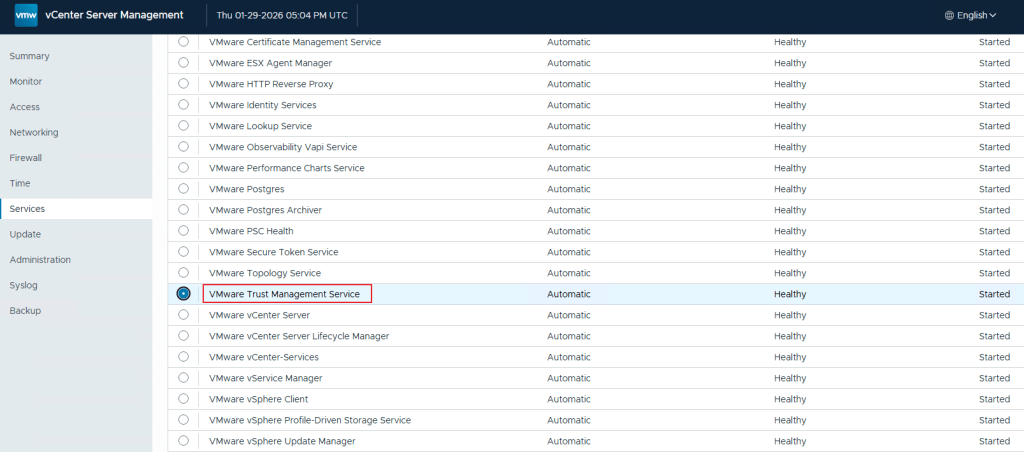
I have checked the VAMI of the vcenter server to check its services first and found that the service VMware Trust Management Service was not started even though it was supposed to start Automatically.

I started that service and refreshed my browser for my vcenter and the identity provider error was resolved.

unfortunately I didn’t take a screenshot of the service when its stopped, but I took a screenshot of after the service has been started as below

So, starting this service resolved the identity provider issue we had.

Hope this helps !