Fixing SDDC Manager Inventory Sync Issues for ESXi Hosts

I recently encountered an issue in my lab. I was trying to patch my ESXI hosts from version 8.0U3b/3d to 8.0U3e/f. I used the SDDC Manager and an Imported LCM Image (Dell Custom ESXI Image). The task was failing at Post check like in the below Screenshot


On digging a little deeper into the issue, I found the SDDC Manager Inventory Sync to be the problem. The ESXI Hosts Upgrade is done. Yet, the SDDC Manager does not register that all the ESXI hosts in the cluster have finished upgrading. As a result, it fails.
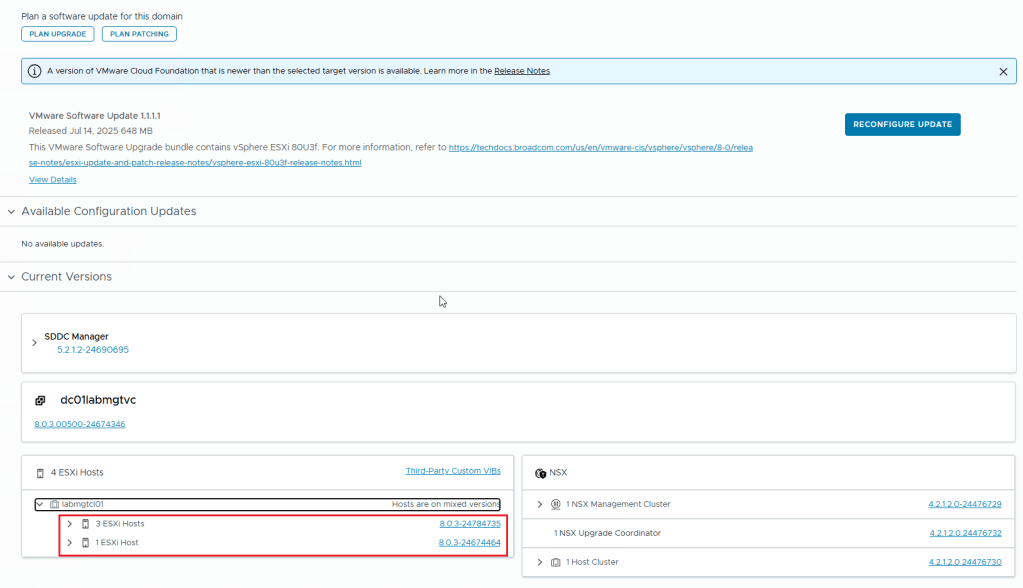
As you can see in the above image, SDDC Manager doesn’t see the proper host version. This issue affects all the ESXI hosts in the same cluster.

I did verify that all the 4 hosts are of the same version (In this instance the version is 8.0.3-24784735)

This issue can be resolved by performing an Inventory sync from within the SDDC Manager. Use the asyncPatchTool for this task. You can download it from the Broadcom website. Here are the Instructions on how to download the async patch tool from the broadcom website.

** You need to have an active entitlement to get this tool. **

Once you download the asyncPatchTool, transfer the tool (vcf-async-patch-tool-1.2.0.0.tar.gz) to /home/vcf directory in the SDDC Manager using WinSCP tool.

Make Sure you follow the instructions in this document in regards to the asyncPatchTool folder and then go to SDDC manager SSH and use the following commands to perform an inventory sync using the asyncPatchTool

./vcf-async-patch-tool --sync --sddcSSOUser administrator@vsphere.local --sddcSSHUser vcf

(Assuming your sddc manager sso account is administrator@vsphere.local)
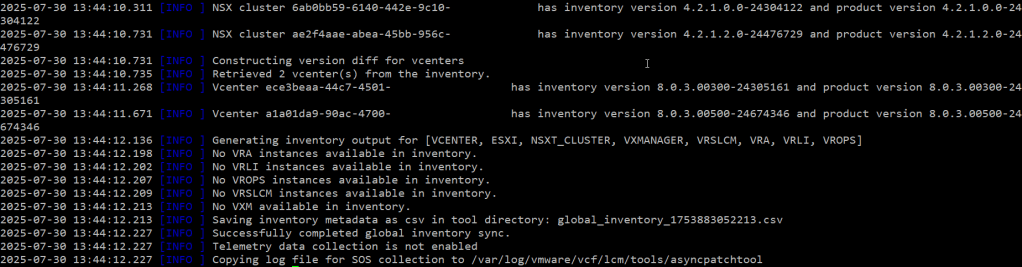
As you can see from the above screenshots, perform an inventory sync using the asyncPatchTool. The correct versions of ESXI hosts and other products appear in the output.

In the below screenshot, you can see that I ran the asyncPatchTool Inventory sync. Then I checked the SDDC Manager. My ESXI hosts are all showing the correct version.
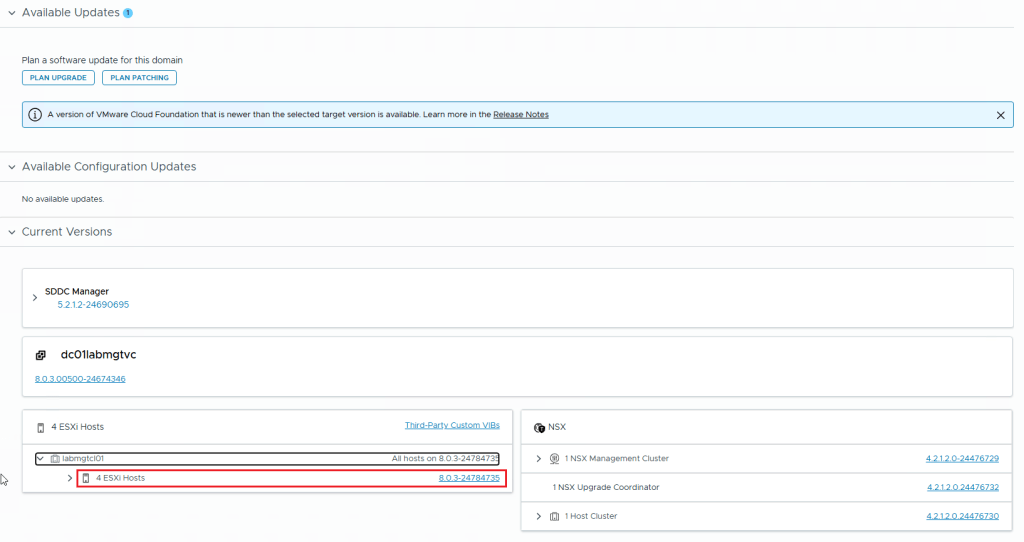
This concludes this article.


NSX BGP Peering Issue in Holodeck 5.2x Workload Domain

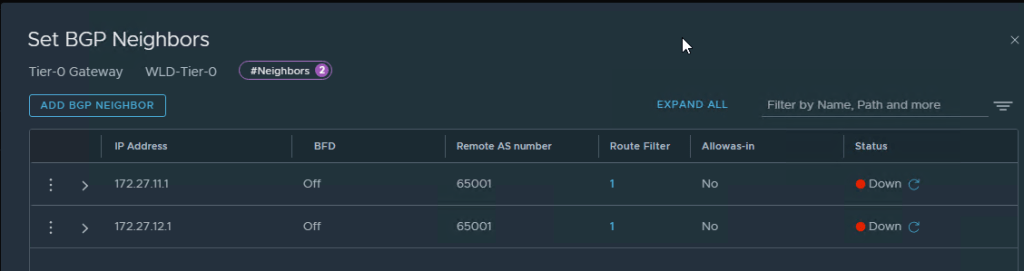
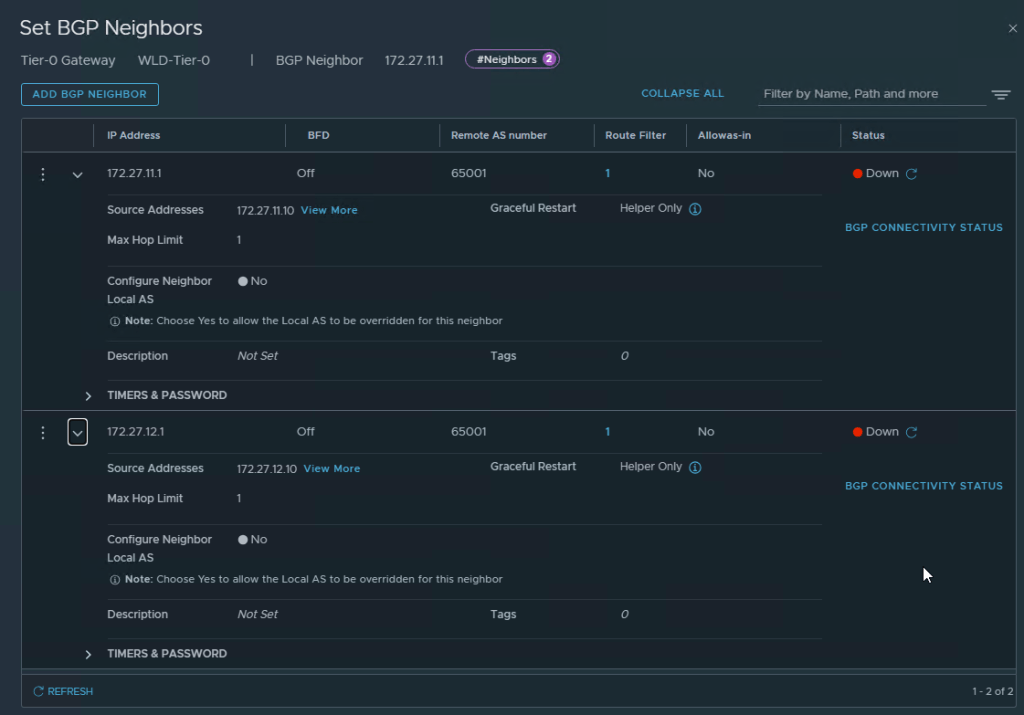
Recently, while I was deploying an NSX Edge Cluster in the Workload domain in the Holodeck 5.2x (I deployed VCF 5.2.1) when I encountered an error in SDDC Manager “Verify NSX BGP Peering” which failed the Adding Edge Cluster task.

Here are the screens on how it looked once I logged into NSX Manager Web UI

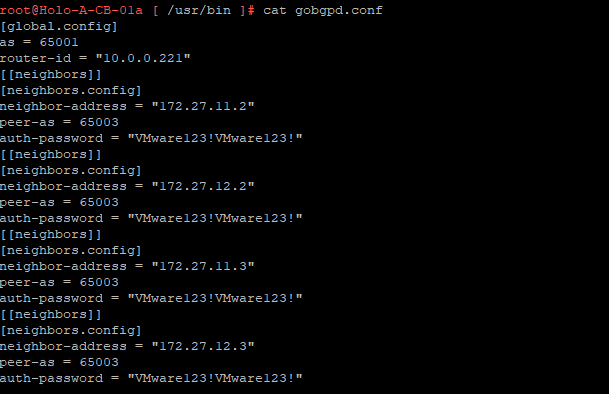
After a lot of troubleshooting, I got some help from my fellow vExpert Abbed Sedkaoui who directed me to check the BGP Configuration in CloudBuilder and the config file to check was the gobgpd.conf file in /usr/bin

Edit this gobgpd.conf file and add the Tier-0 Uplink Interfaces as BGP Neighbors in this file as the below Screenshot

Once the file is saved (You will have to hit ESC and then type :wq!, hit Enter), you can restart the gobgpd service with the following command

systemctl restart gobgpd

This will restart the gobgpd service and in a few minutes you should see the BGP Neighbors going green instead of down status in the NSX Manager UI

here is the command to check the gobgpd status in cloud builder

systemctl status gobgpd

NOTE: All the above commands are to be executed as root in the cloudbuilder appliance, first you SSH into the appliance using admin credentials and then use su to login as root in the appliance. (su creds are same as admin creds in the holodeck lab)

Now you can restart the NSX BGP Peering task again in SDDC Manager and it should go through and create the Workload Domain.

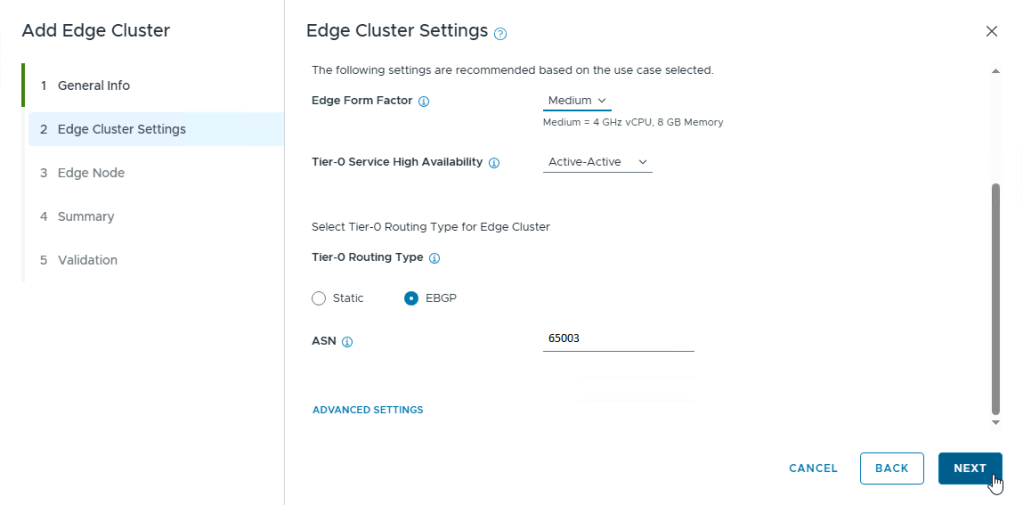
How to Add NSX Edge Cluster to the Workload Domain in SDDC Manager

This post is a continuation to the one which I made on How to Create a Workload Domain in the SDDC Manager.

Login into the SDDC Manager, Go to the Workload Domain which you have created (In my case the workload domain name is wld-domain), go to the Edge Clusters tab

Ignore the Errors in my lab, that’s just license errors in the lab env.

Click on Add Edge Cluster option as in the screenshot below

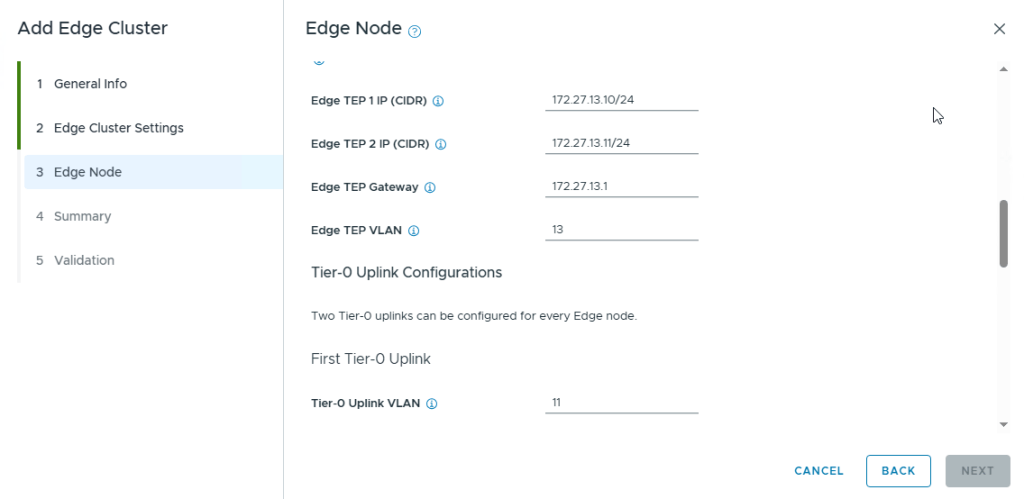
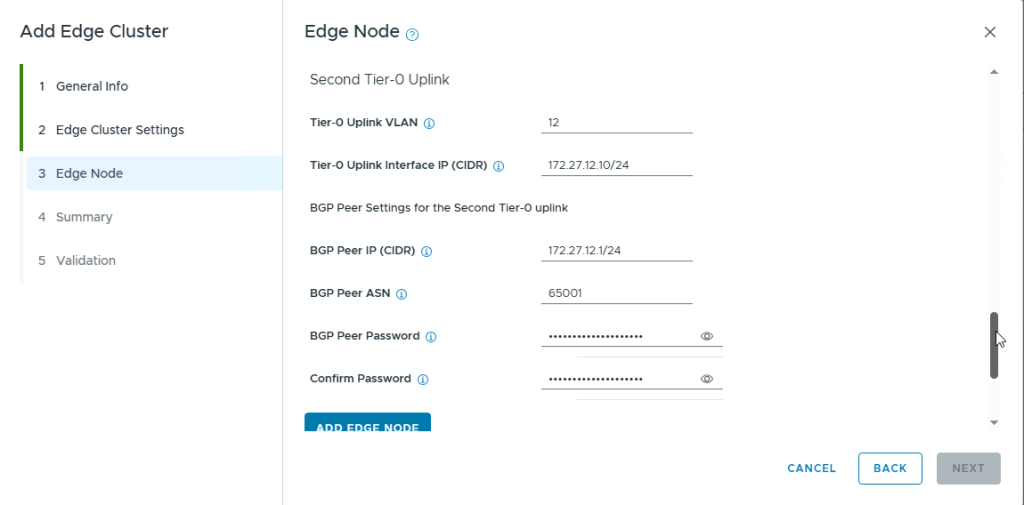
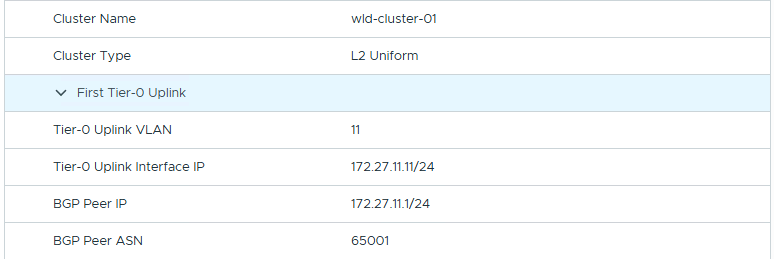
Perform the same steps to add the Edge Node 2 as well but with its own IP Addresses

Once everything is Validated with no errors, it will start the Deployment of the Edge Cluster with Edges in the workload vcenter

This Concludes this post on how to deploy NSX Edge Cluster with 2 Edges in the Workload Domain using SDDC Manager

I have encountered an issue while deploying the NSX Edge Cluster in the workload domain in Holodeck and that is while it was trying the NSX BGP Peering Verification from the SDDC Manager and the BGP Neighbors were down. This was not provided in any documentation and I have documented about this issue and its resolution in this post.

Deploying Workload Domain in Holodeck Toolkit 5.2x

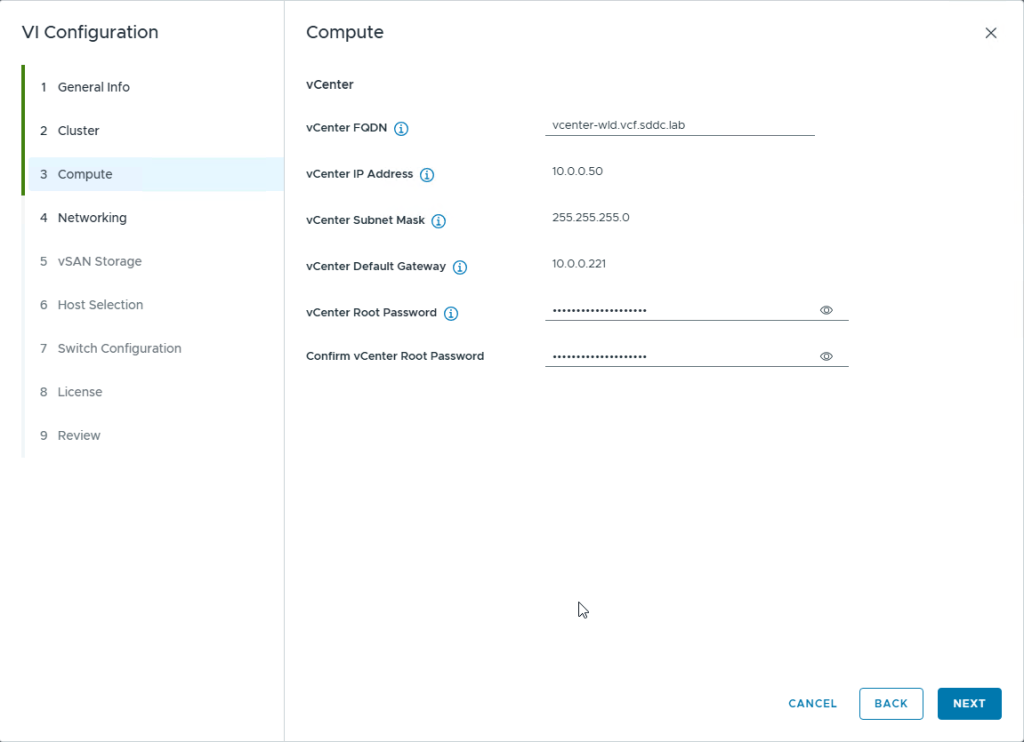
In this post, I will be going over how to deploy a workload domain in the holodeck lab if you have only deployed the management domain with NSX Edge Cluster configured in it by using VLC GUI

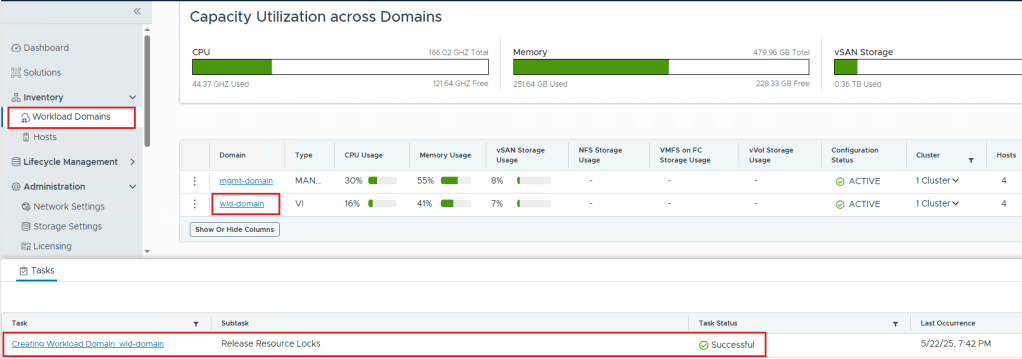
In my lab, I was unsuccessful the first try in getting VLC GUI to deploy the workload management with NSX Edge Cluster in it, so I only deployed the management domain and then configured the workload domain using the SDDC Manager.

First, you will have to use “add_4_big_hosts_ESXi5-8.json” or “add_4_hosts_ESXi5-8.json” using the VLC GUI to provision 4 nested esxi hosts esxi5-esxi8 in the lab env.

Once the hosts are created, you will have to use the commission hosts option under Hosts in SDDC Manager to get the 4 esxi hosts into the SDDC Manager. Once the 4 esxi hosts are unassigned in the SDDC Manager, we will start the creation of the workload domain using the SDDC Manager.

NOTE: The SDDC Manager will only deploy 1 NSX Manager Appliance nsx1-wld even though you provide the network details for all 3 managers

Next Post will be on How to Add an NSX Edge Cluster to the workload domain.