I recently encountered an issue in my lab. I was trying to patch my ESXI hosts from version 8.0U3b/3d to 8.0U3e/f. I used the SDDC Manager and an Imported LCM Image (Dell Custom ESXI Image). The task was failing at Post check like in the below Screenshot


On digging a little deeper into the issue, I found the SDDC Manager Inventory Sync to be the problem. The ESXI Hosts Upgrade is done. Yet, the SDDC Manager does not register that all the ESXI hosts in the cluster have finished upgrading. As a result, it fails.
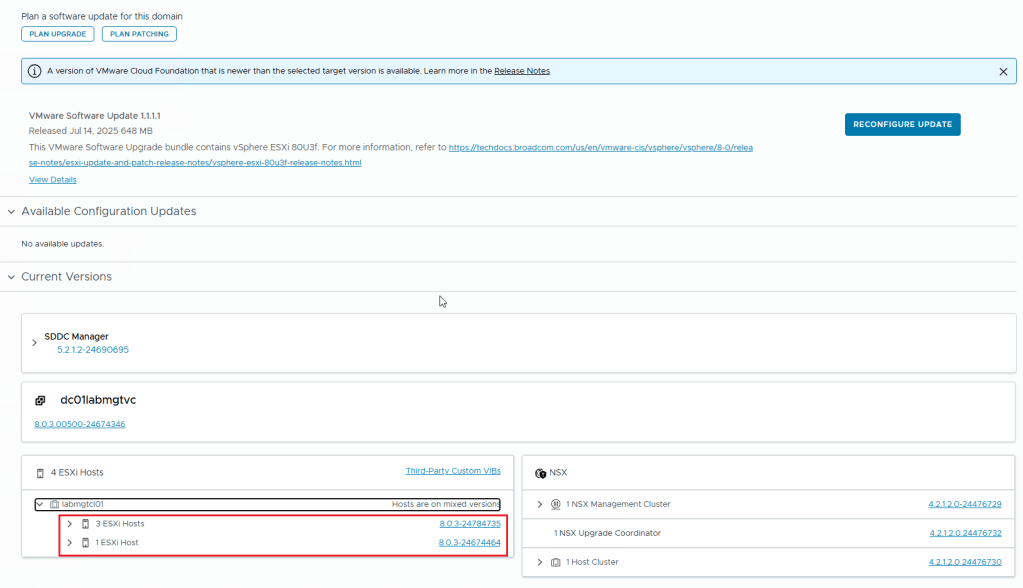
As you can see in the above image, SDDC Manager doesn’t see the proper host version. This issue affects all the ESXI hosts in the same cluster.
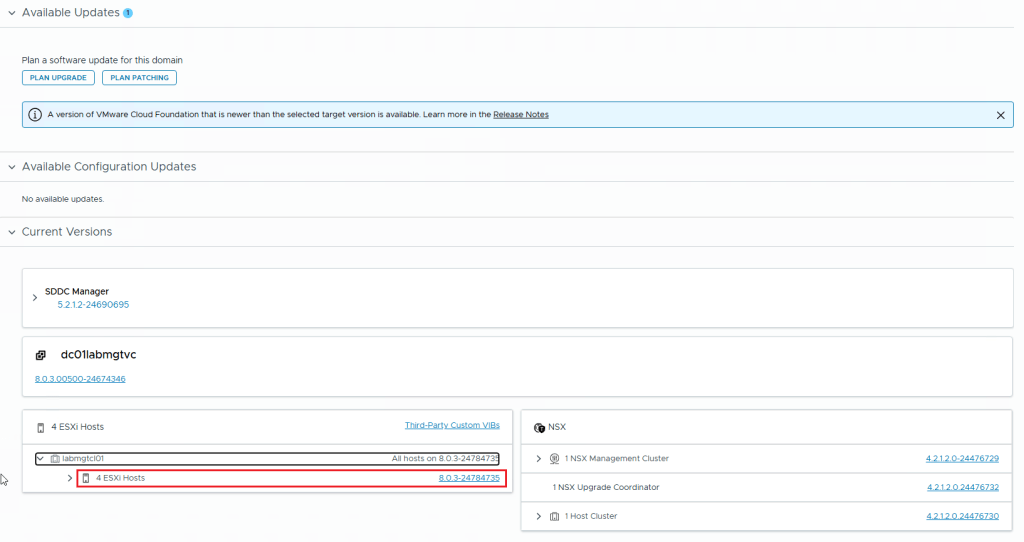
I did verify that all the 4 hosts are of the same version (In this instance the version is 8.0.3-24784735)
This issue can be resolved by performing an Inventory sync from within the SDDC Manager. Use the asyncPatchTool for this task. You can download it from the Broadcom website. Here are the Instructions on how to download the async patch tool from the broadcom website.
** You need to have an active entitlement to get this tool. **
Once you download the asyncPatchTool, transfer the tool (vcf-async-patch-tool-1.2.0.0.tar.gz) to /home/vcf directory in the SDDC Manager using WinSCP tool.

Make Sure you follow the instructions in this document in regards to the asyncPatchTool folder and then go to SDDC manager SSH and use the following commands to perform an inventory sync using the asyncPatchTool
./vcf-async-patch-tool --sync --sddcSSOUser administrator@vsphere.local --sddcSSHUser vcf

(Assuming your sddc manager sso account is administrator@vsphere.local)
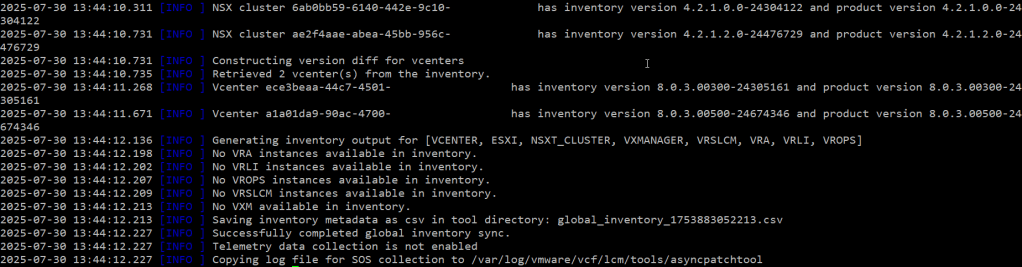
As you can see from the above screenshots, perform an inventory sync using the asyncPatchTool. The correct versions of ESXI hosts and other products appear in the output.
In the below screenshot, you can see that I ran the asyncPatchTool Inventory sync. Then I checked the SDDC Manager. My ESXI hosts are all showing the correct version.
This concludes this article.




 Hyperconverged Infrastructure & Virtualization