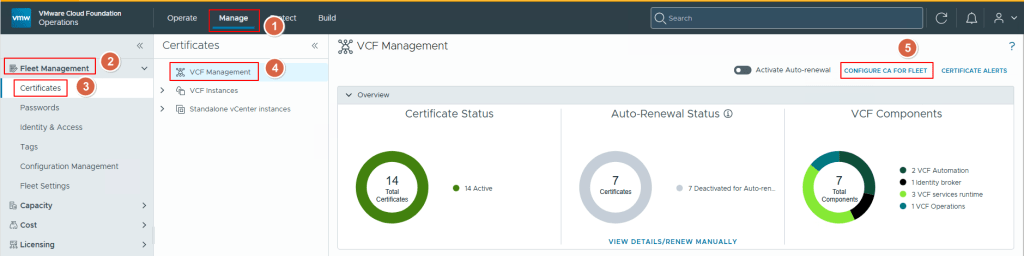
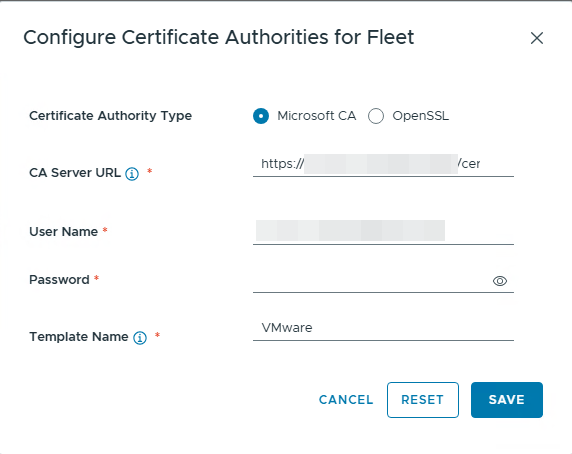
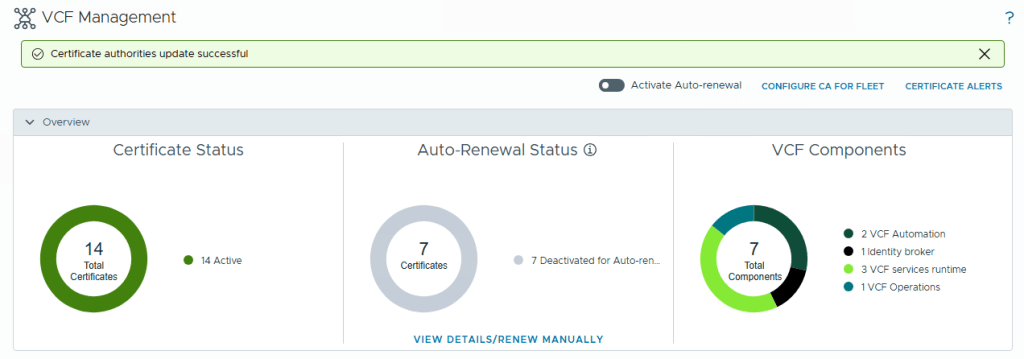
This article is on How to Generate Certificates using your Enterprise CA and updating the certificate on VCF Operations version 9.1
First, we login into the VCF Ops Web UI, go to the Manage option, click on Certificates on the left side of the page, Click on VCF Managent option, select the VCF Operations on the right side of the page, click on the 3 dots and click on “Generate CSRs” option.
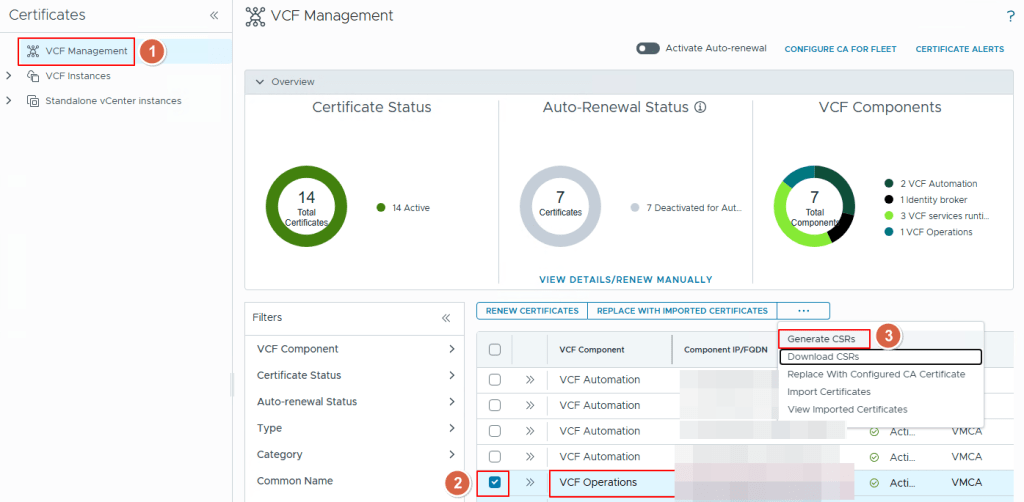
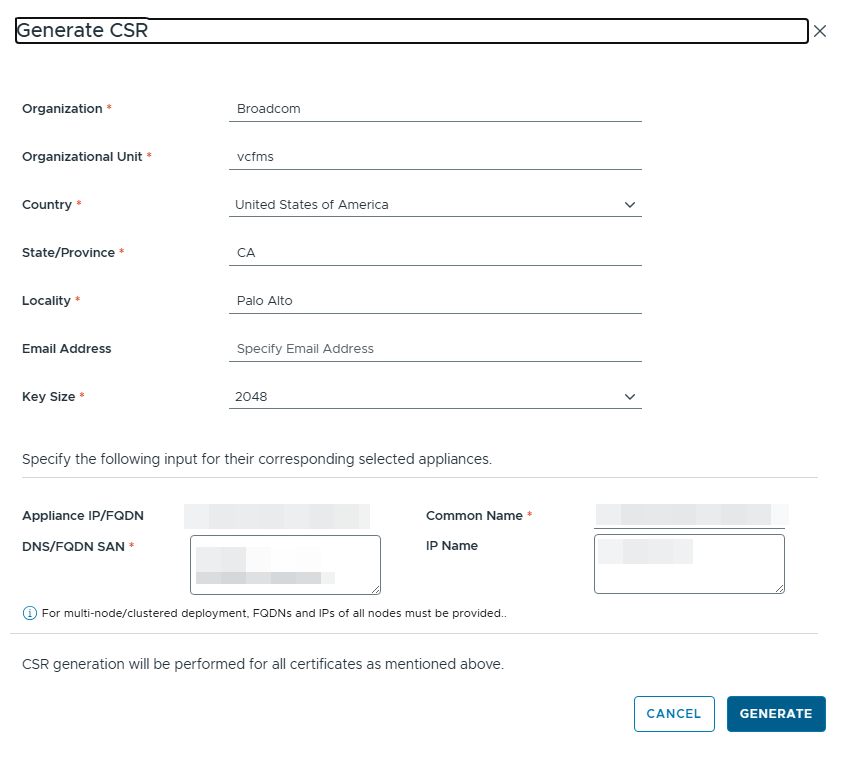
This will pop up another window in which you can provide all the details of the Certificate you require like the following:
Organization Name, Organization Unit, Country, State, Locality, Email Address, Certificate Key Size (which is 2048 by default) etc.
The Mandatory ones to fill in are:
Appliance FQDN/IP address, Common Name, DNS/FQDN SAN Names and the ones with a red asterisk next to the field.
Once you fill in all the fields, click on Generate to generate the CSR
This will generate the CSR internally in VCF Ops
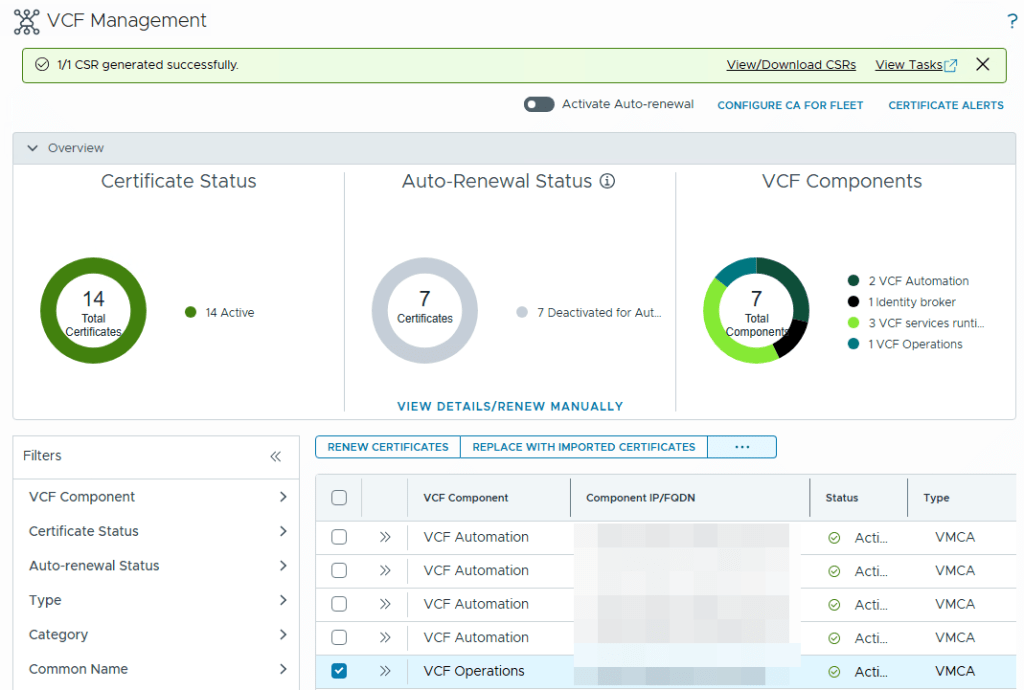
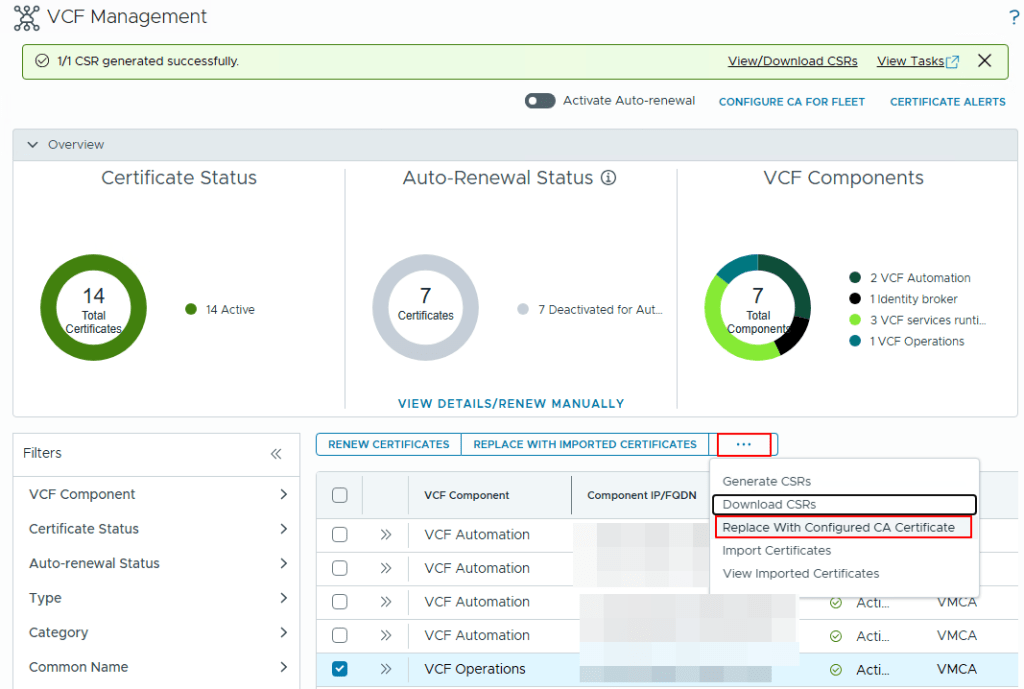
Once the CSR is generated, you click on the selected product (in this case VCF Operations), click the 3 dots again and click on the option to “Replace with Configured CA Certificate” as shown in the below screenshot
Follow the next steps to use the Microsoft CA which you have setup in the previous post – configure-enterprise-ca-in-vcf-operations-9.1
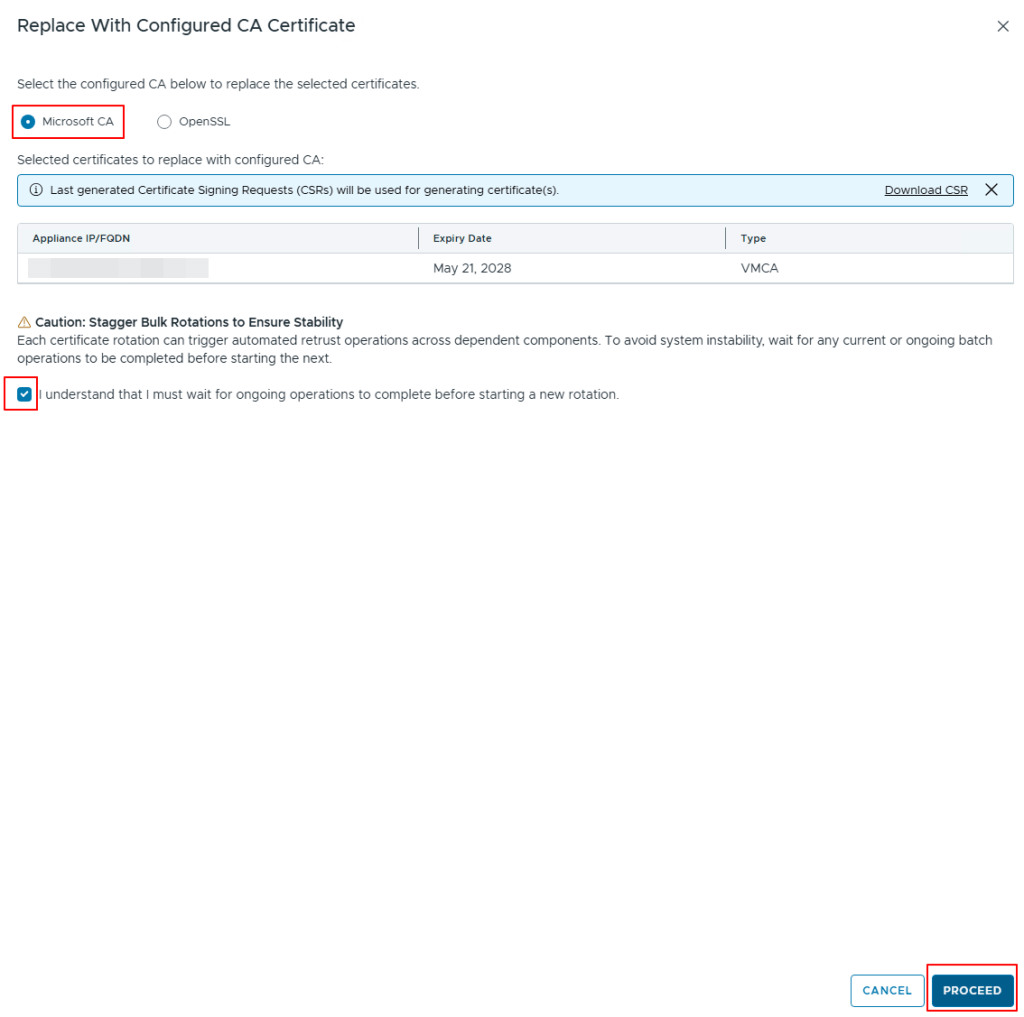
Click on Proceed option to replace the certificates on the VCF Operations, you can check the status of this on the Management Tasks page.
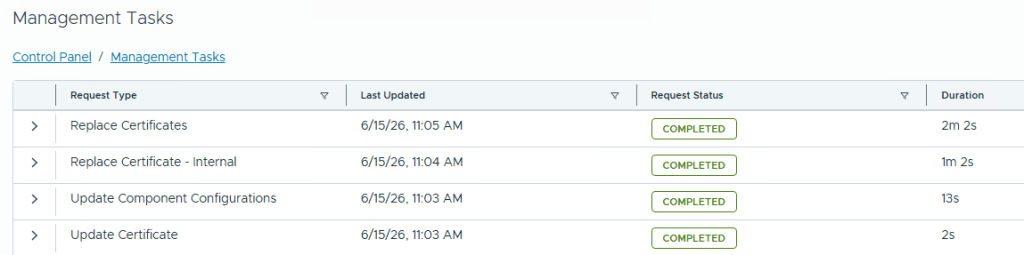
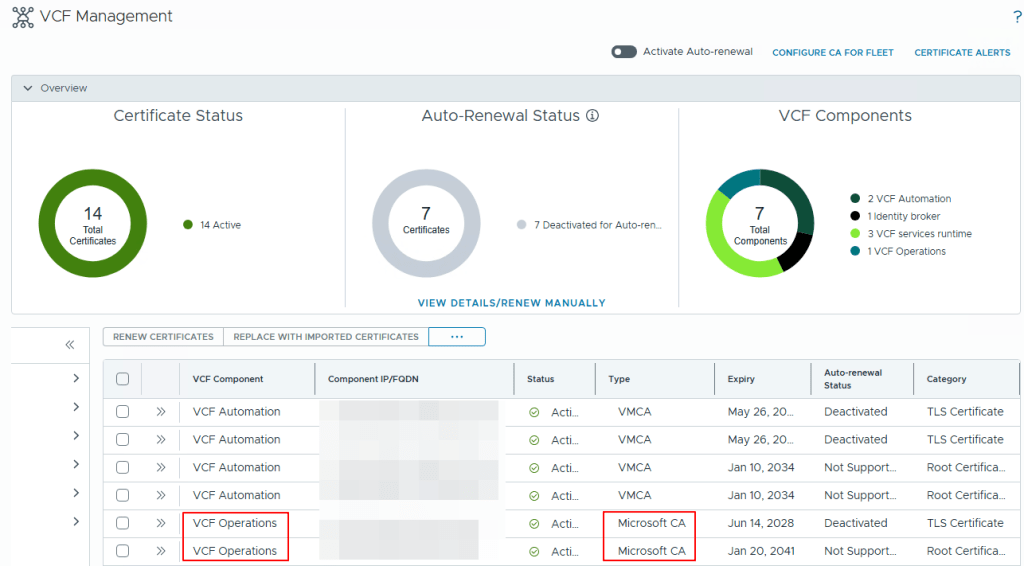
Once the task is completed, you will need to refresh the page to get the new certificate and you can go to the VCF Management, Certificates to check the Certificate Type to see that Microsoft CA is now mentioned instead of VMCA as shown in the below screenshot.
This Concludes this article on how to generate certificate from your enterprise CA and how to replace the certificate automatically on the VCF Operations.
NOTE: The names and FQDN’s have been Pixelated/Blurred for Privacy reasons, However the content is still true in the environment.