Fixing SDDC Manager Inventory Sync Issues for ESXi Hosts

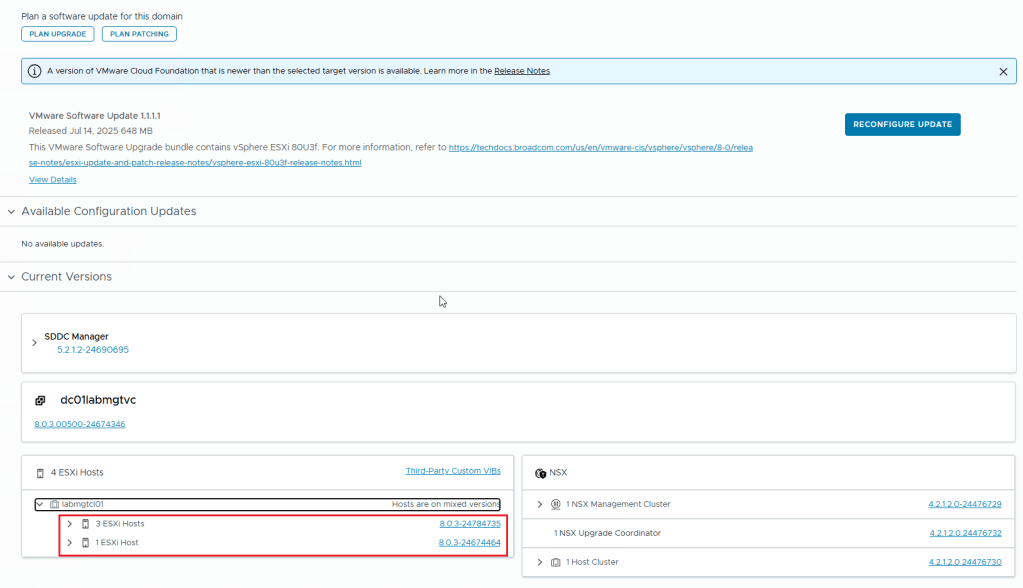
I recently encountered an issue in my lab. I was trying to patch my ESXI hosts from version 8.0U3b/3d to 8.0U3e/f. I used the SDDC Manager and an Imported LCM Image (Dell Custom ESXI Image). The task was failing at Post check like in the below Screenshot

On digging a little deeper into the issue, I found the SDDC Manager Inventory Sync to be the problem. The ESXI Hosts Upgrade is done. Yet, the SDDC Manager does not register that all the ESXI hosts in the cluster have finished upgrading. As a result, it fails.

As you can see in the above image, SDDC Manager doesn’t see the proper host version. This issue affects all the ESXI hosts in the same cluster.

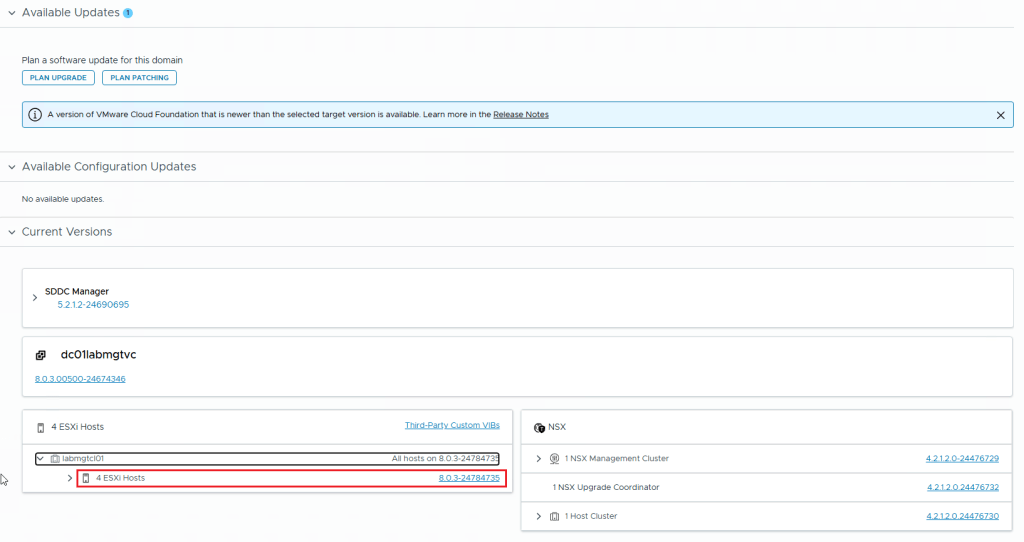
I did verify that all the 4 hosts are of the same version (In this instance the version is 8.0.3-24784735)

This issue can be resolved by performing an Inventory sync from within the SDDC Manager. Use the asyncPatchTool for this task. You can download it from the Broadcom website. Here are the Instructions on how to download the async patch tool from the broadcom website.

** You need to have an active entitlement to get this tool. **

Once you download the asyncPatchTool, transfer the tool (vcf-async-patch-tool-1.2.0.0.tar.gz) to /home/vcf directory in the SDDC Manager using WinSCP tool.

Make Sure you follow the instructions in this document in regards to the asyncPatchTool folder and then go to SDDC manager SSH and use the following commands to perform an inventory sync using the asyncPatchTool

./vcf-async-patch-tool --sync --sddcSSOUser administrator@vsphere.local --sddcSSHUser vcf

(Assuming your sddc manager sso account is administrator@vsphere.local)

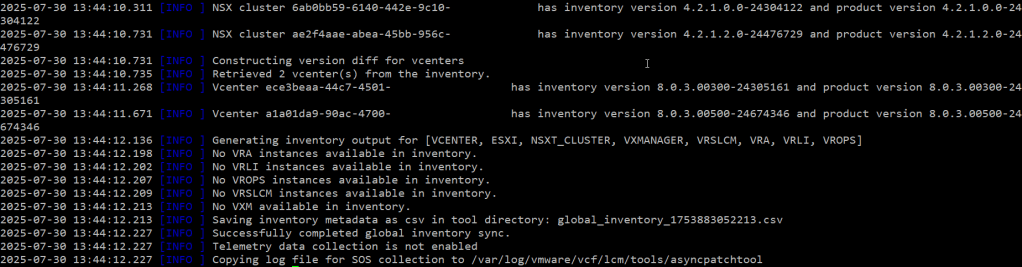
As you can see from the above screenshots, perform an inventory sync using the asyncPatchTool. The correct versions of ESXI hosts and other products appear in the output.

In the below screenshot, you can see that I ran the asyncPatchTool Inventory sync. Then I checked the SDDC Manager. My ESXI hosts are all showing the correct version.

This concludes this article.

NSX BGP Peering Issue in Holodeck 5.2x Workload Domain

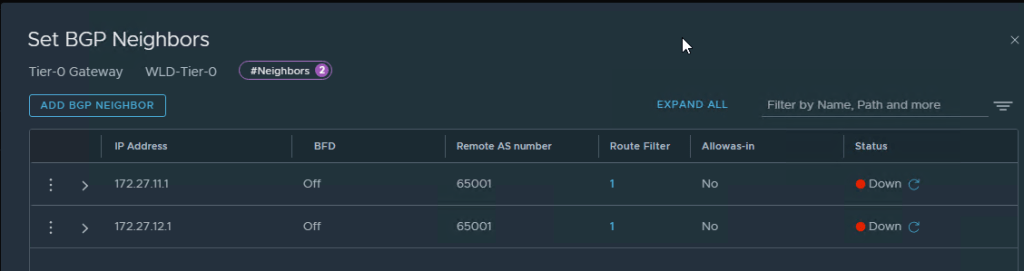
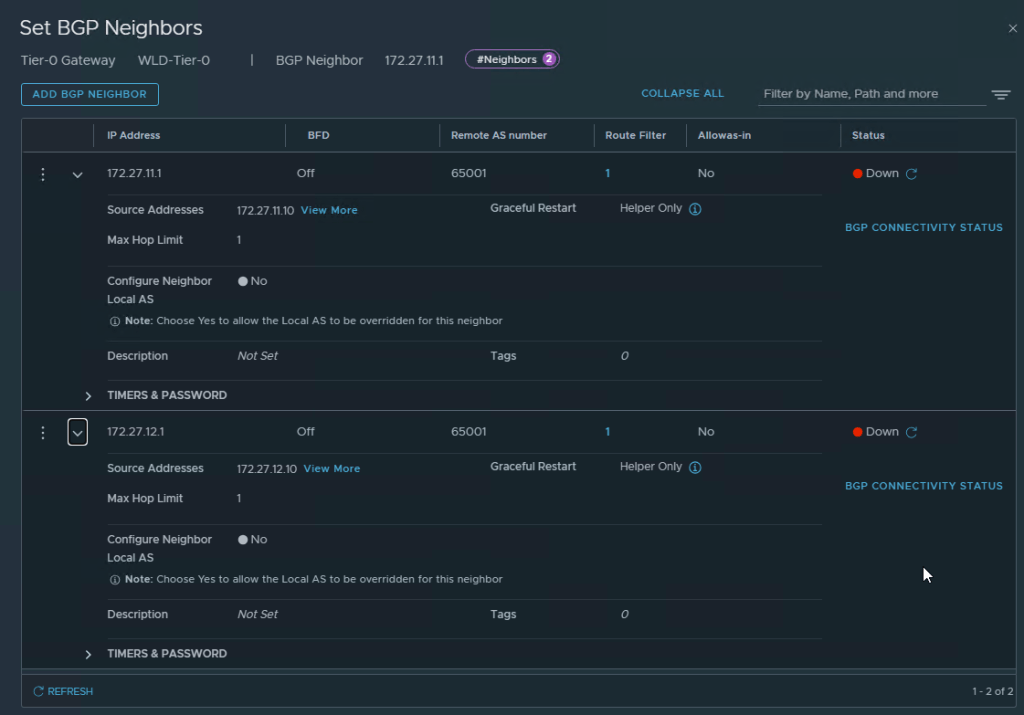
Recently, while I was deploying an NSX Edge Cluster in the Workload domain in the Holodeck 5.2x (I deployed VCF 5.2.1) when I encountered an error in SDDC Manager “Verify NSX BGP Peering” which failed the Adding Edge Cluster task.

Here are the screens on how it looked once I logged into NSX Manager Web UI

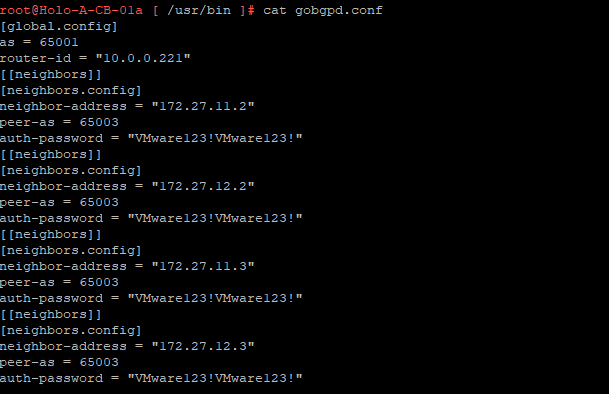
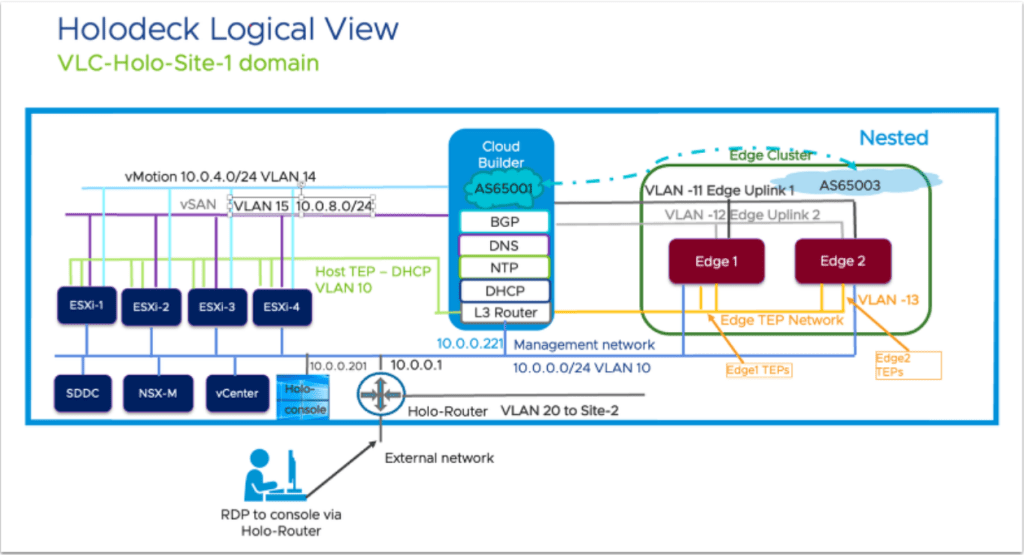
After a lot of troubleshooting, I got some help from my fellow vExpert Abbed Sedkaoui who directed me to check the BGP Configuration in CloudBuilder and the config file to check was the gobgpd.conf file in /usr/bin

Edit this gobgpd.conf file and add the Tier-0 Uplink Interfaces as BGP Neighbors in this file as the below Screenshot

Once the file is saved (You will have to hit ESC and then type :wq!, hit Enter), you can restart the gobgpd service with the following command

systemctl restart gobgpd

This will restart the gobgpd service and in a few minutes you should see the BGP Neighbors going green instead of down status in the NSX Manager UI

here is the command to check the gobgpd status in cloud builder

systemctl status gobgpd

NOTE: All the above commands are to be executed as root in the cloudbuilder appliance, first you SSH into the appliance using admin credentials and then use su to login as root in the appliance. (su creds are same as admin creds in the holodeck lab)

Now you can restart the NSX BGP Peering task again in SDDC Manager and it should go through and create the Workload Domain.

How to Add NSX Edge Cluster to the Workload Domain in SDDC Manager

This post is a continuation to the one which I made on How to Create a Workload Domain in the SDDC Manager.

Login into the SDDC Manager, Go to the Workload Domain which you have created (In my case the workload domain name is wld-domain), go to the Edge Clusters tab

Ignore the Errors in my lab, that’s just license errors in the lab env.

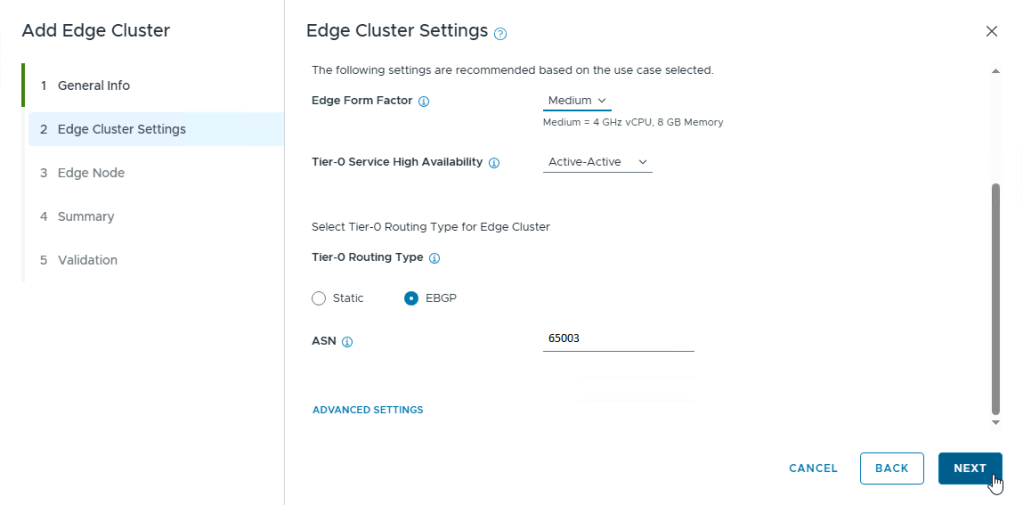
Click on Add Edge Cluster option as in the screenshot below

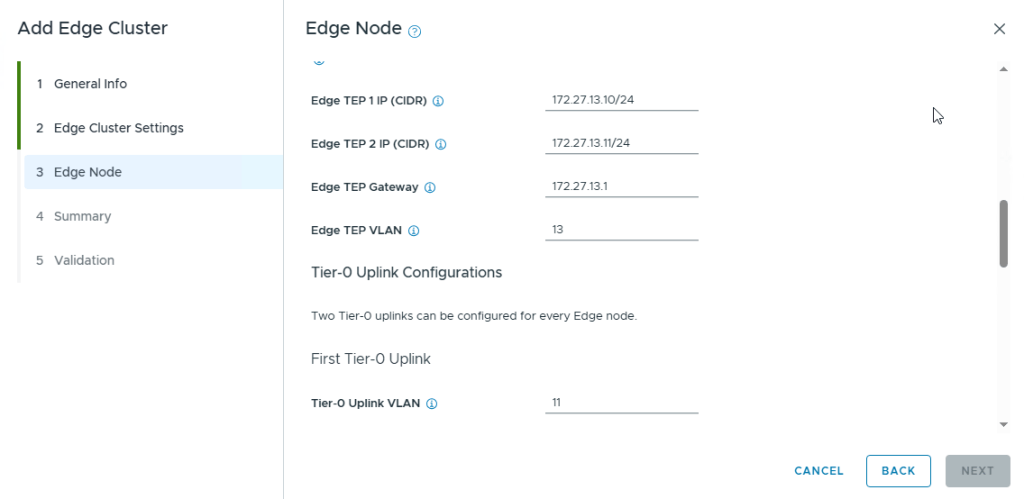
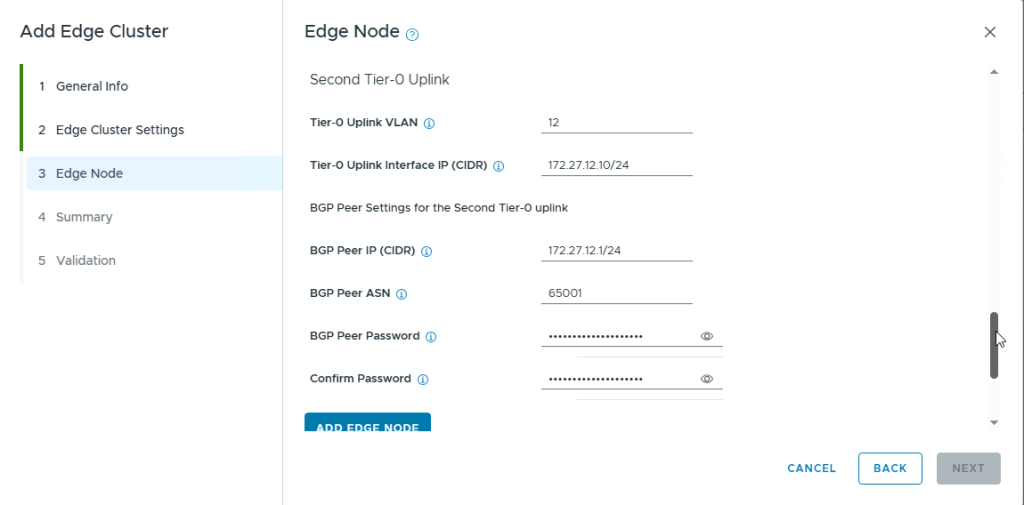
Perform the same steps to add the Edge Node 2 as well but with its own IP Addresses

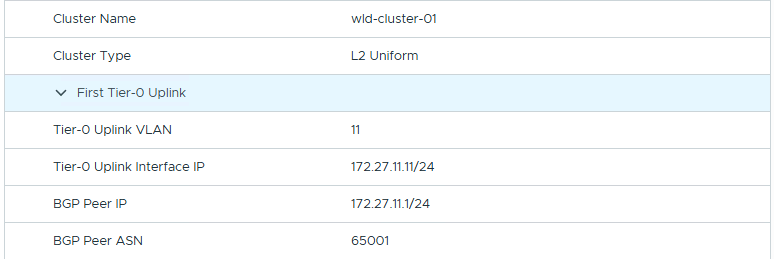
Once everything is Validated with no errors, it will start the Deployment of the Edge Cluster with Edges in the workload vcenter

This Concludes this post on how to deploy NSX Edge Cluster with 2 Edges in the Workload Domain using SDDC Manager

I have encountered an issue while deploying the NSX Edge Cluster in the workload domain in Holodeck and that is while it was trying the NSX BGP Peering Verification from the SDDC Manager and the BGP Neighbors were down. This was not provided in any documentation and I have documented about this issue and its resolution in this post.

Deploying Workload Domain in Holodeck Toolkit 5.2x

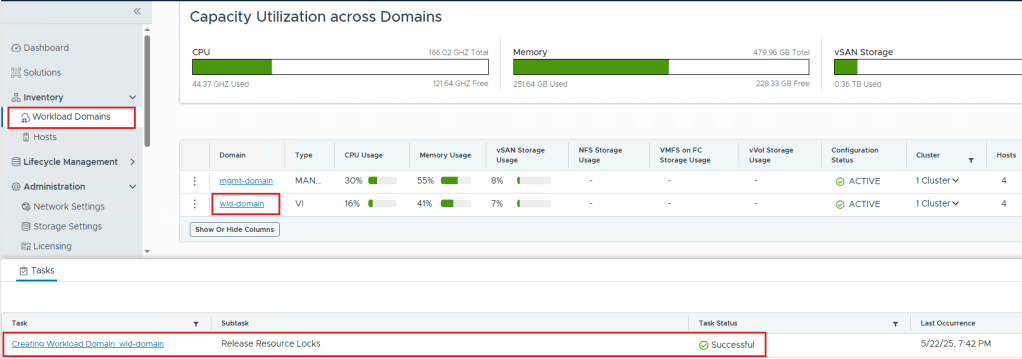
In this post, I will be going over how to deploy a workload domain in the holodeck lab if you have only deployed the management domain with NSX Edge Cluster configured in it by using VLC GUI

In my lab, I was unsuccessful the first try in getting VLC GUI to deploy the workload management with NSX Edge Cluster in it, so I only deployed the management domain and then configured the workload domain using the SDDC Manager.

First, you will have to use “add_4_big_hosts_ESXi5-8.json” or “add_4_hosts_ESXi5-8.json” using the VLC GUI to provision 4 nested esxi hosts esxi5-esxi8 in the lab env.

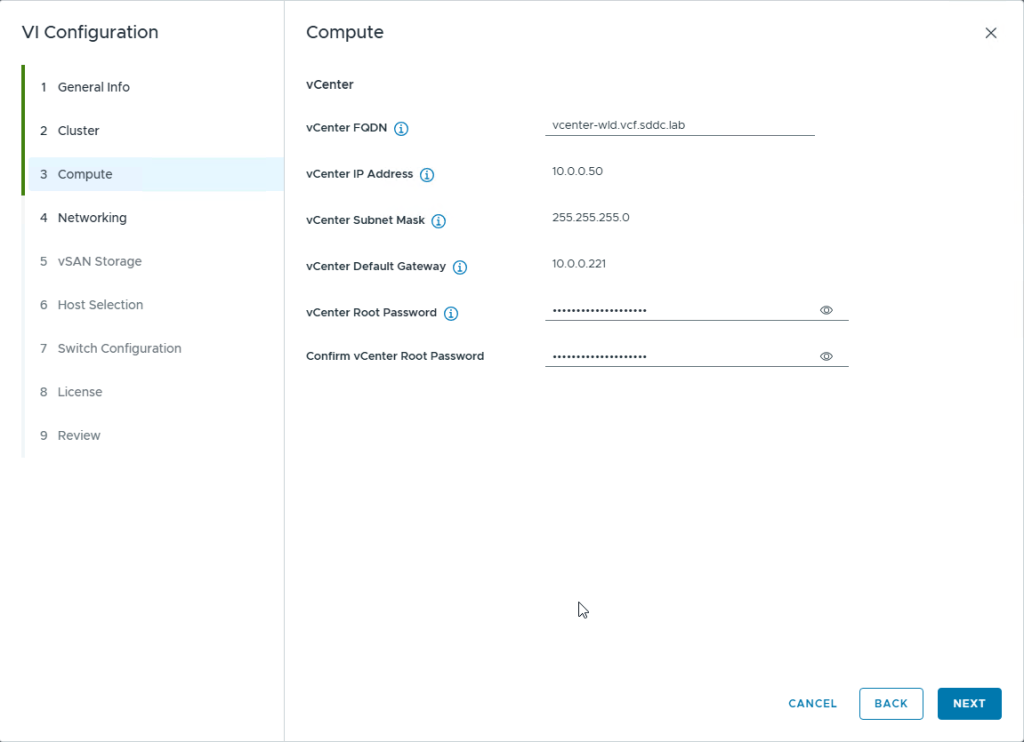
Once the hosts are created, you will have to use the commission hosts option under Hosts in SDDC Manager to get the 4 esxi hosts into the SDDC Manager. Once the 4 esxi hosts are unassigned in the SDDC Manager, we will start the creation of the workload domain using the SDDC Manager.

NOTE: The SDDC Manager will only deploy 1 NSX Manager Appliance nsx1-wld even though you provide the network details for all 3 managers

Next Post will be on How to Add an NSX Edge Cluster to the workload domain.

Enable Certificate Validation in SDDC Manager (VCF 4.5.x)

Recently, I had to use the Asyncpatch tool in SDDC Manager to Patch our vcenter to 7.0U3o due to the Critical Security patch VMSA-2023-0023 and came across this issue when performing the precheck for Management Domain in SDDC Manager.

If you Expand “Sddc Security Configuration”, the error was on the option “VMware Cloud Foundation certificate validation check”

if you come across this issue, perform the following commands to enable the Certificate Validation Check in SDDC Manager

Review the Certificate Validation Setting

Command --
root@sddcmgr1# curl localhost/appliancemanager/securitySettings

Output --
{"fipsMode":false,"certificateValidationEnabled":false}

Enable the Certification Validation

Command --
root@sddcmgr1# curl 'http://localhost/appliancemanager/securitySettings' -X POST -H 'Content-Type: application/json' -H 'Accept: application/json' -d '{"fipsMode":false,"certificateValidationEnabled":true}'

Check the Certificate Validation Setting after Enabling the Certificate Validation

Command --
root@sddcmgr1# curl localhost/appliancemanager/securitySettings

Output --
{"fipsMode":false,"certificateValidationEnabled":true}

You can observe from the above Output that the certificate validation is enabled as true.

Now, you can go ahead and retry the precheck and it will go through.

The final precheck which is green is shown in the screenshot below

VRA Agent Status Down in VRA 7.6, LDAPS Certificate Issue

Recently came across an issue in our Production environment that VRA Agent status was showing as Down in one of our Sites.

The screenshot is shown as below:

This screenshot has 2 clusters

On investigating, we checked the vSphereAgent.log file which is present on the server where this VRA agent was installed and configured. (In our case it was one one of the IWS (IAAS Web Server) Node)

The location of this log file is at C:\Program Files (x86)\VMware\vCAC\Agents\<VRA_Agent_Name>\logs\

In this log, you can find multiple lines with an error:

This exception was caught:
System.Web.Services.Protocols.SoapException: vCenter Error: Cannot complete login due to an incorrect user name or password.

if this is the case, check the LDAPS Certificate to your Domain Controllers of the domain you have added on the vCenter server Web UI.

Even though it doesn’t show you the certificate expiry in this UI, you can check the certificate status by logging into vcenter SSH and executing the following command:

openssl s_client -connect adds01.corp.test.local:636 -showcerts

Replace the Domain Controller hostname with your domain controller hostname after the -connect in the above command to get the valid cert from the domain controller.

In our case, we found that the cert on the domain controller has been recently renewed and we had to input the new cert to the Identity Source in the vcenter web UI.

Once the new cert is installed, you can login into your VRA Default Tenant (VRA 7.6), go to Infrastructure -> Endpoints -> Endpoints and go to your vcenter and click on edit and then re-validate the service account password (Test the connection) and once it is successful, the VRA Agent will come back UP.

Testing the connection to the vcenter using the service account which is already added and the test is successful.

Hope this article helps you if you see your VRA agents as down and can’t find anything else missing or even restarting the vra agent service doesn’t change the status.

Great VCF Troubleshooting Guide by my Fellow vExpert

I wanted to ping back one of the great article by one of my fellow vExpert Shank Mohan on his website about an unofficial VCF Troubleshooting guide. I have learned from this article and would like to remember this article and hence posting it back on my blog.

Great VCF Troubleshooting guide by Shank Mohan

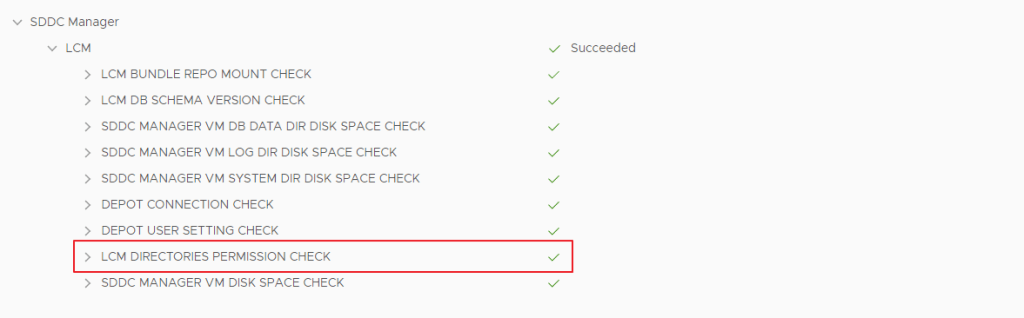
LCM Directory Permission Error When pre-checking for SDDC Manager Upgrade with VCF 3.11 Patch

I was getting ready to patch our environment from VCF 3.10.2.2 to VCF 3.11 as VMware has officially released a complete Patch for VCF 3.10.x this month, when I was performing the VCF Upgrade Pre-Check for the Management Domain, I came across this issue

The LCM Pre-Check Failed due to a directory permission issue for one of the lcm directory

Issue is that the pre-check says that the directory “/var/log/vmare/vcf/lcm/upgrades/<long code directory>/lcmAbout” owner is root but the owner needs to be user vcf_lcm

This is how I resolved the issue:

Login into SDDC Manager as user vcf, do su and provide the root password

then go to the following directory “/var/log/vmware/vcf/lcm/upgrades/<long code directory as displayed in the lcm error on sddc manager>

chown vcf_lcm lcmAbout
chmod 750 lcmAbout

The above two commands will change the owner from root to vcf_lcm and also provide the required permissions to the folder so the pre-check can complete.

The full screenshot of what I performed is below:

Commands to change owner to vcf_lcm and to provide the required permissions for the folder lcmAbout

Once you perform the commands above, you can run the pre-check and this time it will proceed successfully as shown below

Hope this article helps if you come across this issue with sddc manager upgrade from VCF 3.10.2.2 to 3.11

VRA Proxy Agent Down and Inventory Data Collection stuck ‘in progress’ – VRA 7.6

Recently we had an issue where in one of our Sites (We have multiple sites in VCF), the VRA Proxy Agent was showing as Down and restarting the services (VRA Agent) on the ims (Infrastructure Manager Service) did not bring the agent up.

Here is the process to check if the ims load balancer address is entered in the VRMAgent.exe.config file on the ims server.

Issue: In our case, the VRM Agent was installed on the active Infrastructure Manager Service server (ims01a), However, the vrm agent config only had this entry instead of the load balancer entry (imslb) in its configuration. So, when the ims01a became passive and node ims01b became active node, this broke the VRM agent and the agent status became down.

Solution: Edit the vrmagent.config file and update the lines 83 and 104 pointing this file to the ims load balancer hostname so that when the ims servers change active-passive state, the VRM agent will not go down.

Before we continue, stop the service “VMware vCloud Automation Center Agent – agent_name” (Here in my example the agent name is dc2)

Pictures of the issue are below:

VRM Agent status showing as Down
Data Collection status showing as in progress but not changing state to successful

Solution Screenshots are as below:

Location of the VRMAgent.exe.config file on the iws (Infrastructure Web Server) node
Line 83 where you will need to change the hostname to the ims loadbalancer. (In this screenshot, the load balancer hostname is https://dc1vraimslb.domain.local)
line 104 where you need to edit the endpoint address to be the load balancer hostname

Once these modifications are done in this config file, you save it and then start the service “VMware vCloud Automation Center Agent – dc2 (where dc2 is the agent name configured when the agent was installed on this server)

Disclaimer: As this Environment is Property of my Company, The Original names have either been modified or pixelated for Privacy.

Once the agent service is started, you can go back to VRA and check the Agent Status and it will be up and the in progress data collection will actually complete in few minutes (For my environment it took atleast 15-20 minutes for the inventory to complete).

Hope this article helps if you face the same issue in VRA 7.6!

Workaround instructions to address CVE-2021-44228 in vCenter Server 6.7.x – For VCF 3.10.x

UPDATE: VMware has Updated the KB 87081 to Include the Script to remove log4j_class

I have taken these Workaround Instructions from the KB article 87081 and KB article 87095

For vCenter 6.7.x appliance in an VCF 3.10.x setup, some of the instructions in article 87081 don’t work and also in VCF 3.10.x since there are external PSC’s and the order to execute the instructions is as follows.

I am calling out VMware team to amend the steps for vCenter 6.7.x appliance in an non-HA configuration in the article 87081, especially for VCF 3.10.x installations.

For vCenter 6.7.x ; Steps to execute

vMON Service

  1. Backup the existing java-wrapper-vmon file

cp -rfp /usr/lib/vmware-vmon/java-wrapper-vmon /usr/lib/vmware-vmon/java-wrapper-vmon.bak

  1. Update the java-wrapper-vmon file with a text editor such as vi

vi /usr/lib/vmware-vmon/java-wrapper-vmon

  1. At the very bottom of the file, replace the very last line with 2 new lines
    • Originalexec $java_start_bin $jvm_dynargs “$@”Updated
      log4j_arg=”-Dlog4j2.formatMsgNoLookups=true”
      exec $java_start_bin $jvm_dynargs $log4j_arg “$@” 
  2. Restart vCenter Services

service-control –stop –all
service-control –start –all

Note: If the services do not start, ensure the file permissions are set correctly with these commands:

  • chown root:cis /usr/lib/vmware-vmon/java-wrapper-vmon
  • chmod 754 /usr/lib/vmware-vmon/java-wrapper-vmon

Analytics Service

NOTE:- The below workaround (Analytics service) is applicable for vCenter Server Appliance 6.7 Update 3o and Older versions only. vCenter Server Appliance 6.7 Update 3p is by default covered by vMON Service workaround. 

  1. Back up the log4j-core-2.8.2.jar file

cp -rfp /usr/lib/vmware/common-jars/log4j-core-2.8.2.jar /usr/lib/vmware/common-jars/log4j-core-2.8.2.jar.bak

  1. Run the zip command to disable the class

zip -q -d /usr/lib/vmware/common-jars/log4j-core-2.8.2.jar org/apache/logging/log4j/core/lookup/JndiLookup.class

  1. Restart the Analytics service

service-control –restart vmware-analytics 

CM Service

  1. Back up the log4j-core.jar file

cp -rfp /usr/lib/vmware-cm/lib/log4j-core.jar /usr/lib/vmware-cm/lib/log4j-core.jar.bak

  1. Run the zip command to disable the class

zip -q -d /usr/lib/vmware-cm/lib/log4j-core.jar org/apache/logging/log4j/core/lookup/JndiLookup.class

  1. Restart the CM service

service-control –restart vmware-cm

Run the remove_log4j_class.py script

1. Download the script attached to this KB (remove_log4j_class.py)

2. Login to the vCSA using an SSH Client (using Putty.exe or any similar SSH Client)

3. Transfer the file to /tmp folder on vCenter Server Appliance using WinSCP
Note: It’s necessary to enable the bash shell before WinSCP will work

4. Execute the script copied in step 1:

python remove_log4j_class.py

The script will stop all vCenter services, proceed with removing the JndiLookup.class from all jar files on the appliance and finally start all vCenter services. The files that the script modifies will be reported as “VULNERABLE FILE” as the script runs.

Verify the changes

Once all sections are complete, use the following steps to confirm if they were implemented successfully.

  1. Verify if the stsd, idmd, and vMon controlled services were started with the new -Dlog4j2.formatMsgNoLookups=true parameter:

ps auxww | grep formatMsgNoLookups

Check if the processes include -Dlog4j2.formatMsgNoLookups=true

  1. Verify the Analytics Service changes:

grep -i jndilookup /usr/lib/vmware/common-jars/log4j-core-2.8.2.jar | wc -l
 This should return 0 lines

  1. Verify the CM Service changes:

grep -i jndilookup /usr/lib/vmware-cm/lib/log4j-core.jar | wc -l

This should return 0 lines

The remaining steps for Secure Token Service, Identity Management Service don’t work for vcenter 6.7.x in VCF 3.10.x (3.10.2.1) environment

——– So, after this Step, we will have to SSH into the External PSC and follow the below steps ———-

CM Service

  1. Back up the log4j-core.jar file

cp -rfp /usr/lib/vmware-cm/lib/log4j-core.jar /usr/lib/vmware-cm/lib/log4j-core.jar.bak

  1. Run the zip command to disable the class

zip -q -d /usr/lib/vmware-cm/lib/log4j-core.jar org/apache/logging/log4j/core/lookup/JndiLookup.class

  1. Restart the CM service

service-control –restart vmware-cm


Secure Token Service

  1. Back up and edit the the vmware-stsd file

cp /etc/rc.d/init.d/vmware-stsd /root/vmware-stsd.bakvi /etc/rc.d/init.d/vmware-stsd

  1. Find the section labeled start_service(). Insert a new line near line 266, just before “$DAEMON_CLASS start” with “-Dlog4j2.formatMsgNoLookups=true \” as seen in the example:

start_service()
{
  perform_pre_startup_actions

  local retval
  JAVA_MEM_ARGS=`/usr/sbin/cloudvm-ram-size -J vmware-stsd`
  $JSVC_BIN -procname $SERVICE_NAME \
            -home $JAVA_HOME \
            -server \
            <snip>
            -Dauditlog.dir=/var/log/audit/sso-events  \
            -Dlog4j2.formatMsgNoLookups=true \
            $DAEMON_CLASS start

  1. Restart the vmware-stsd service

service-control –stop vmware-stsd
service-control –start vmware-stsd

Identity Management Service

  1. Back up and edit the the vmware-sts-idmd file

cp /etc/rc.d/init.d/vmware-sts-idmd /root/vmware-sts-idmd.bakvi /etc/rc.d/init.d/vmware-sts-idmd

  1. Insert a new line near line 177 before “$DEBUG_OPTS \” with “-Dlog4j2.formatMsgNoLookups=true \” as seen in the example:

$JSVC_BIN -procname $SERVICE_NAME \
          -wait 120 \
          -server \
          <snip>
          -Dlog4j.configurationFile=file://$PREFIX/share/config/log4j2.xml \
          -Dlog4j2.formatMsgNoLookups=true \
          $DEBUG_OPTS \
          $DAEMON_CLASS

  1. Restart the vmware-sts-idmd service

service-control –stop vmware-sts-idmd
service-control –start vmware-sts-idmd

Verify the changes

Once all sections are complete, use the following steps to confirm if they were implemented successfully.

  1. Verify if the stsd, idmd, psc-client, and vMon controlled services were started with the new -Dlog4j2.formatMsgNoLookups=true parameter:

ps auxww | grep formatMsgNoLookups

Check if the processes include -Dlog4j2.formatMsgNoLookups=true

  1. Verify the CM Service changes:

grep -i jndilookup /usr/lib/vmware-cm/lib/log4j-core.jar | wc -l

This should return 0 lines

The steps in VMware KB Article 87081 is for vCenter with Embedded PSC and the above steps are for the vCenter server 6.7 with an External PSC

Hope this article helps the Engineers who are working on this log4j Vulnerability and if they have VCF 3.10.x you can follow the above steps with an external PSC Configuration.