Recently I had to check the existing passwords in sddc manager in our VCF 3.11 environment and found out there is a simple way. Here it is.
SSH into your SDDC Manager using vcf user and go to the root prompt using su command and use the below command:
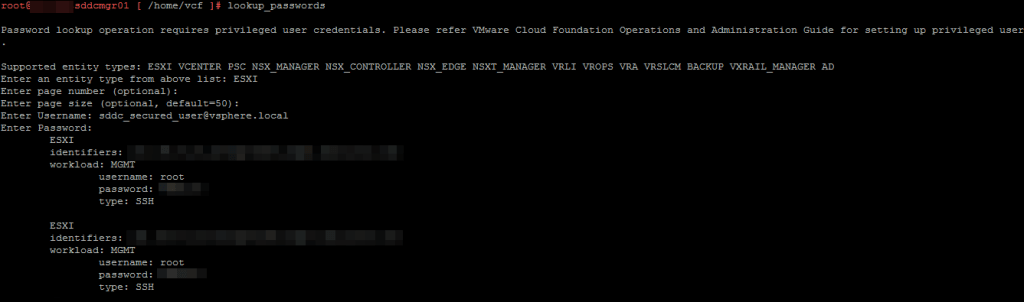
root@sddcmgr01 [home/vcf]# lookup_passwords
Screenshot:
This will bring up all the products which sddc manager keeps track of
Select any product and then you will have to provide the sddc secured user credentials which you provided at the time of deploying SDDC manager in the VCF environment. This credential is also used for the backup of SDDC Manager and NSX Components.
in this case ESXI was selected to display the esxi hosts credentials
This way, you can get all the passwords for all the components controlled by SDDC Manager in VCF 3.x
NOTE/Disclaimer: I had to Blur/Pixelate certain components in my screenshots as they are in a live environment.
I wanted to ping back one of the great article by one of my fellow vExpert Shank Mohan on his website about an unofficial VCF Troubleshooting guide. I have learned from this article and would like to remember this article and hence posting it back on my blog.
I was getting ready to patch our environment from VCF 3.10.2.2 to VCF 3.11 as VMware has officially released a complete Patch for VCF 3.10.x this month, when I was performing the VCF Upgrade Pre-Check for the Management Domain, I came across this issue
The LCM Pre-Check Failed due to a directory permission issue for one of the lcm directory
Issue is that the pre-check says that the directory “/var/log/vmare/vcf/lcm/upgrades/<long code directory>/lcmAbout” owner is root but the owner needs to be user vcf_lcm
This is how I resolved the issue:
Login into SDDC Manager as user vcf, do su and provide the root password
then go to the following directory “/var/log/vmware/vcf/lcm/upgrades/<long code directory as displayed in the lcm error on sddc manager>
chown vcf_lcm lcmAbout
chmod 750 lcmAbout
The above two commands will change the owner from root to vcf_lcm and also provide the required permissions to the folder so the pre-check can complete.
The full screenshot of what I performed is below:
Commands to change owner to vcf_lcm and to provide the required permissions for the folder lcmAbout
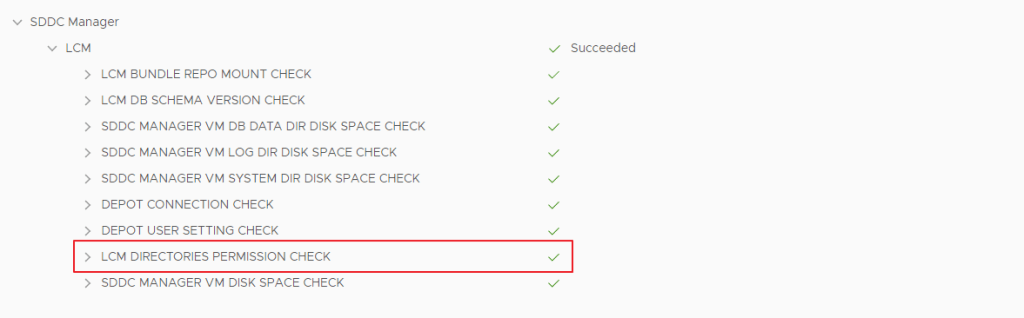
Once you perform the commands above, you can run the pre-check and this time it will proceed successfully as shown below
Hope this article helps if you come across this issue with sddc manager upgrade from VCF 3.10.2.2 to 3.11
VMware has finally realeased an patch version for VCF 3.x and the version is 3.11. You can only download this as a patch form from the SDDC Manager. You can Upgrade to version 3.11 from 30.10.2.2 or VCF 3.5 or later.
Security fixes for Apache Log4j Remote Code Execution Vulnerability: This release fixes CVE-2021-44228 and CVE-2021-45046. See VMSA-2021-0028.
Security fixes for Apache HTTP Server: This release fixes CVE-2021-40438. See CVE-2021-40438.
Improvements to upgrade prechecks: Upgrade prechecks have been expanded to verify filesystem capacity, file permissions, and passwords. These improved prechecks help identify issues that you need to resolve to ensure a smooth upgrade.
This also resolves the following Security Advisory VMSA-2022-0004 which deals with several vulnerabilities in esxi 6.7 hosts
This also resolves the vulnerability in VCF SDDC Manager 3.x according to the security advisory VMSA-2022-0003
This version also addresses the heap-overflow vulnerability in esxi hosts according to the security advisory VMSA-2022-0001.2
The Updated product versions according to the BOM for VCF 3.11 are
Hope this post helps for the teams who have VCF 3.10.x and waiting for the long awaited log4j patch instead of an workaround.
I recently came across an issue where the vRealize Life Cycle Manager 2.1 has the Deploy option greyed out in SDDC Manager in VCF 3.10.x and the issue looks like the screenshot below:
The issue happened as we were using VLAN Backed Network for vRealize products instead of AVN in this version of VCF
The solution is as follows:
Log in to SDDC Manager by using a secure shell (SSH) client, use the account vcf to login into SSH session
Type su to elevate to root and enter the root_password.
Enter the following and press enter.
cd /home/vcf
echo "feature.vrealize.enable.non.avn.deployments=true" >> feature.properties
chown vcf:vcf feature.properties
chmod 644 feature.properties
/opt/vmware/vcf/operationsmanager/scripts/cli/sddcmanager_restart_services.sh
When prompted enter Y to confirm. vRealize Suite deployments using SDDC Manager will now be deployed to VLAN backed networks
I have recently come across an issue in our new VCF 3.10.x build that when we try to deploy the VRA using SDDC Manager, we get an error that the AD Account we have provided can’t validate with the Domain.
The warning is as shown in the picture below:
Note That I had to change a few details and also blur some details from my environment due to privacy reasons.
The Error basically states that VRA is not able to communicate to my domain lab.com with the service account lab\svc_vra_adm because it is trying to contact test.lab.com instead of lab.com Domain
test.lab.com is a DNS Zone in our actual root Domain lab.com and all our VRA Appliances have the host records added to test.lab.com instead of the root domain.
After multiple tries and VMware support, we got to know that VRA (7.x and 8.x) doesn’t support explicit identification of the Active Directory domain name. The kb article which mentions this issue is
The Solution is to make sure that the host records of your VRA is the same as your ‘Actual‘ Domain, in this case lab.com and then retry the validation using the SDDC Manager with the same service account lab\svc_vra_adm
This post shows how to Upgrade VMware Cloud Foundation v2.2.x to 2.2.x.
NOTE: This is a pretty old version of VMware Cloud Foundation we have in our Test environment as we are preparing it for an upgrade before we do it on our production environment.
The current version of VMware Cloud foundation is 3.5 (As of 03/11/2019)
First, we will login into the SDDC Manager Web UI
SDDC Main Page
The above screen is the main page once you login into SDDC Manager
SDDC System Status Page
On the left hand side, you need to click on Life Cycle Manager to check for your upgrade options and to actually perform the upgrade of all the components in the SDDC.
SDDC Life Cycle Manager
Select the Upgrade available and you want to go to and click “UPDATE”
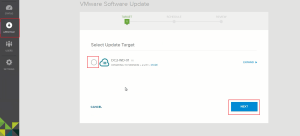
Select the Target (In this case its the DataCenter Work Domain) and click Next
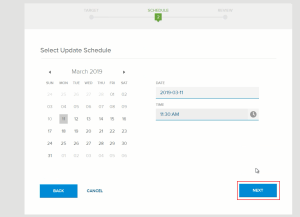
Update Scheduler
Select the Date and Time you want the schedule to start and click Next
Update Scheduler final selection to continue
Select the option “SCHEDULE UPDATE” to schedule the update of all the components.
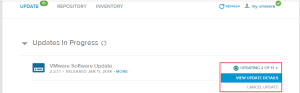
Update Progress
In the next window, you can see the update progress. You can expand the Update option to see the actual status of the update.
View Update Details
After clicking on View Update Details option, you expand on the next screen to see the hosts/objects you are upgrading using the SDDC Manager (In this case I was upgrading the esxi hosts)
Check the Status of the Objects
Final Screenshot shows that the upgrade is complete. It generally takes a few hours depending on how many nodes are present in the cluster.
Upgrade Complete
This concludes on how to Upgrade VMware Cloud Foundation. More posts to follow soon.









 Hyperconverged Infrastructure & Virtualization