Recently, while I was deploying an NSX Edge Cluster in the Workload domain in the Holodeck 5.2x (I deployed VCF 5.2.1) when I encountered an error in SDDC Manager “Verify NSX BGP Peering” which failed the Adding Edge Cluster task.
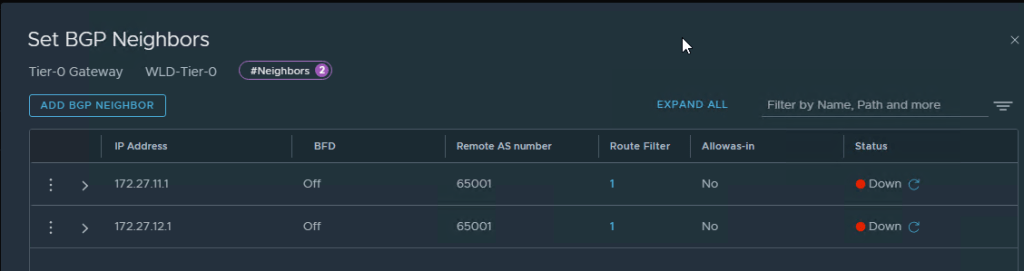
Here are the screens on how it looked once I logged into NSX Manager Web UI
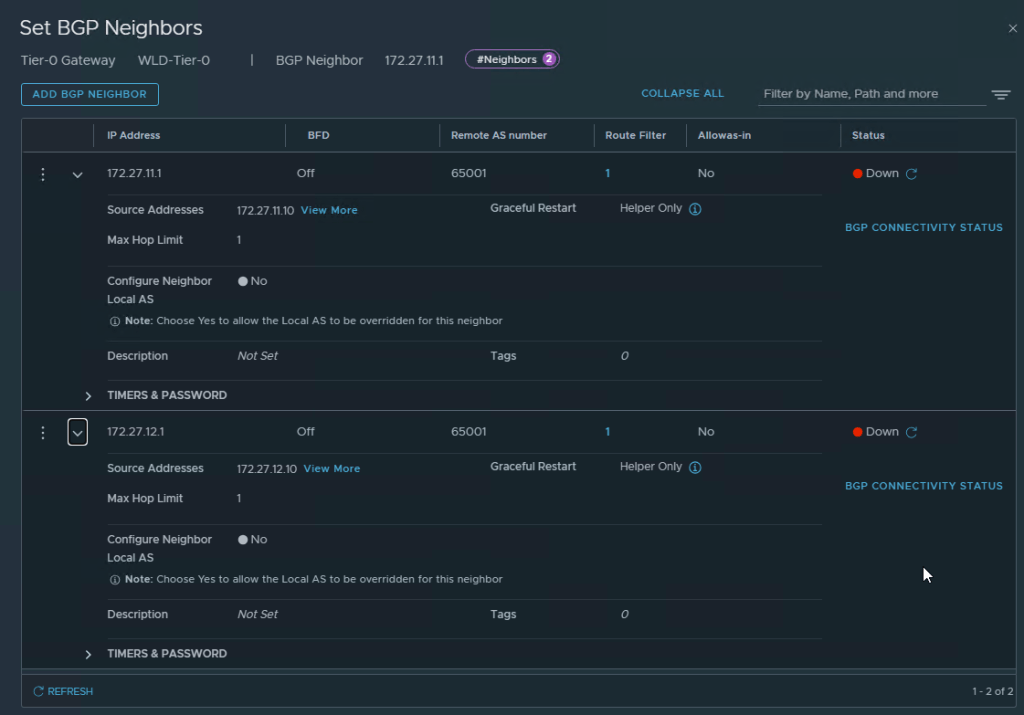
You can see that the BGP Neighbors are showing as down in the UIYou can also see that the BGP Neighbors configuration is correct but they still show as down
After a lot of troubleshooting, I got some help from my fellow vExpert Abbed Sedkaoui who directed me to check the BGP Configuration in CloudBuilder and the config file to check was the gobgpd.conf file in /usr/bin
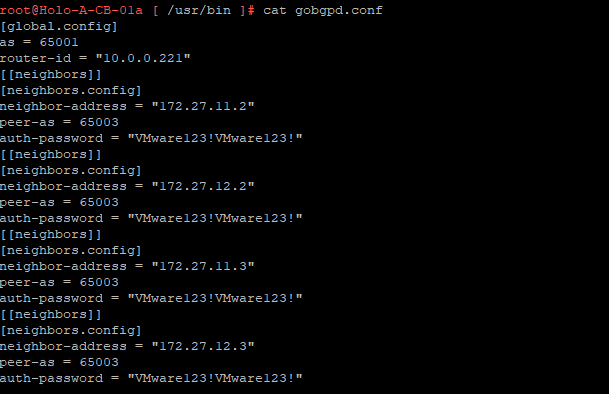
This is how the old configuration was in the gobgpd.conf file which only had the BGP Neighbor IPs of the NSX Edges and it Tier-0 Config from the Management Domain
Edit this gobgpd.conf file and add the Tier-0 Uplink Interfaces as BGP Neighbors in this file as the below Screenshot
I have added the uplink IPs (172.27.11.10,11.11, 172.27.12.10,12.11) to the BGP neighbors list
Once the file is saved (You will have to hit ESC and then type :wq!, hit Enter), you can restart the gobgpd service with the following command
systemctl restart gobgpd
This will restart the gobgpd service and in a few minutes you should see the BGP Neighbors going green instead of down status in the NSX Manager UI
here is the command to check the gobgpd status in cloud builder
systemctl status gobgpd
NOTE: All the above commands are to be executed as root in the cloudbuilder appliance, first you SSH into the appliance using admin credentials and then use su to login as root in the appliance. (su creds are same as admin creds in the holodeck lab)
Now you can restart the NSX BGP Peering task again in SDDC Manager and it should go through and create the Workload Domain.
This is the next part to my post How to Fix the Certs Error in vCenter 8.x in VCF 5.2 where we fixed the certs in the vcenters in both management and workload domains. Now, since the certificates of the vcenters are changed, the SDDC Manager has an issue and when we try to get to the sddc manager URL we get the following error:
The error message says that it has to do with “Identity Internal Server Error” which basically says that it has an issue communicating with the vcenters.
To fix this issue, we will need to download a python script called VcRootCaSync.py from the KB article 316007 and then execute the following command from the SDDC Manager
python VcRootCaSync.py
Once you execute this command from within the SDDC Manager, it will show you the active vcenters and you can pick which vcenter server you want to refresh the root cert in the sddc manager.
In our case, since we have 2 vcenters (management and workload domain), I had to execute this command twice to do the same process for both the vcenters and this fixed our issue with the SDDC Manager UI not showing the Login page.
With this Update, now we can Upgrade the vCenter server using Migration-based upgrade method, which means a new vCenter appliance will be deployed and the existing vCenter data is completely migrated, with this the downtime is only during the vCenter switchover (which is appx 5 minutes).
This reduces the actual downtime of the vCenter server being down during the upgrade.
However, this is an option alongside the regular vCenter server upgrade using the existing method as well. This new option is called the migration based approach.
There are some limitations however to this approach in this initial release:
1.This method is NOT supported in vCenters which are in Enhanced Linked Mode
2. The on-prem version doesn’t support vCenters which are in HA Configuration
Resilient vCenter Patching
In this update, the vCenter will automatically take a snapshot before the patching starts and then it gives you an option to rollback if the patching fails.
An Automatic Logical Volume Manager Snapshot (LVM) is taken before the patching of the vCenter server. This is an OS level snapshot and it is not a file based snapshot.
This will take a snapshot of the OS regardless of a VM snapshot being present on the VM.
Updates to the Certificate Management in vCenter Server
Now, you can renew or replace the vCenter Server certificates without the service restart option in vSphere 8 U2.
There is no need to schedule downtime to restart the services on the vCenter Server after the certificates have been renewed.
Restoring VDS Switch Configuration
There is a distributed Key Value Store added to the esxi hosts in the cluster which reconciles its information with the vCenter when the vCenter is restored from backup. This helps the vCenter to have the latest distributed switch information rather than the information which could be outdated from when the vCenter snapshot was taken by the backup application.
This helps in having the latest changes in the distributed switch provided to the vCenter server once it is restored from backup.
Adding Additional Identity Provider/s
With vSphere 8 U2, Azure AD has been added as an Identity Source to direct Federation options. All the other identity choices are still available.
This option helps the customer use consistent single sign-on inside their org.
we still have the legacy identity options like Microsoft AD over LDAPS, Microsoft ADFS & Okta Identity. This is a new addition to the existing options.
Updates to the vSphere Security Configuration & Hardening Guide with vSphere 8 U2
Lifecycle Manager can now manage shared vSAN witness nodes
vSphere lifecycle manager now can manage the image of vSAN witness nodes independent of the vSAN cluster in vSphere 8 U2
End to End UI has been added to the Configuration Management option in the vCenter Server
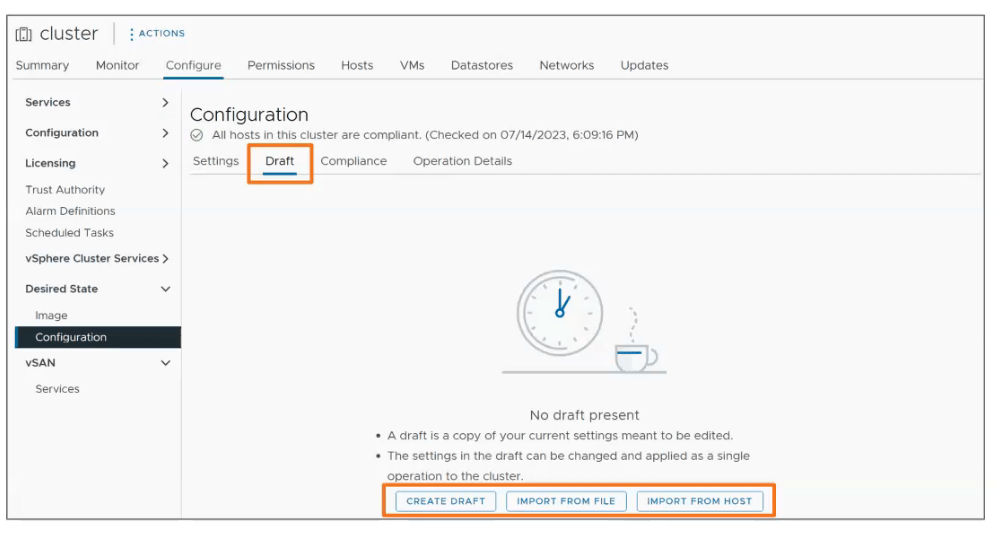
The Configuration Management which has been introduced in vSphere 8 has been improved and now an end to end UI has been added where the draft can be created, the configuration can be imported from file (as a json document)/host in the configuration Management menu in the vCenter Server.
Streamlined Windows Guest Customization
Now you can specify the Windows AD OU Path during the VM Customization Specification in vSphere 8 U2
Descriptive Error Messages when Files are Locked
With this Update (vSphere 8 U2), the vCenter server now shows which esxi host is holding the lock for a particular file. It is now easy to identify the source of locked VM files from the vSphere client. There is no need to run CLI commands or review the logs. The vSphere client shows the IP address and MAC of the host holding the file lock.
Expanding the Vendor Partnership for DPUs
With vSphere 8 U2, the vendor Fujitsu Systems with NVIDIA DPUs have been added to the ecosystem of DPU vendors.
Improved Placement for GPU Workloads
with this update, DRS makes smarter placement decisions for vGPU enabled VMs. vGPU VMs are automatically migrated to accomodate larger VMs. DRS can now place the VMs with vGPU more efficiently in the cluster and can now move those workloads around in the cluster
Quality of Service for GPU Workloads
A new option has been introduced in this update is the Estimated Max Stun time calculated based on assigned vGPU profile on the VM. Administrators can now define max acceptable stun time on the VM which has a vGPU profile.
VM Hardware Version 21
With this Update, the VM hardware version is now 21 and here are some of the additions to this hardware version
You can now add 16 vGPU per VM
now it supports 256 disks per VM of vNVMe (64 disks * 4 vNVMe adapters)
NVMe 1.3 support for Windows 11 and Windows Server 2022
NVMe for WSFC using NVMe adapters
Latest Guest OS (RHEL 10, Oracle Linux 10, Debian 13 & FreeBSD 15)
Streamlining Supervisor Cluster Deployments
reuse cluster configuration by exporting and importing the supervisor configuration. you can also now clone supervisor configuration to a new cluster
The above screenshot is a sample json document
Increased Flexibility of DevOps Deployments
more enhancements for customers to deploy Windows based vms in TKG namespaces
These are some of the major updates coming to vSphere 8 U2 which will be released in Q3 of 2023.
Recently came across an issue in our Production environment that VRA Agent status was showing as Down in one of our Sites.
The screenshot is shown as below:
This screenshot has 2 clusters
On investigating, we checked the vSphereAgent.log file which is present on the server where this VRA agent was installed and configured. (In our case it was one one of the IWS (IAAS Web Server) Node)
The location of this log file is at C:\Program Files (x86)\VMware\vCAC\Agents\<VRA_Agent_Name>\logs\
In this log, you can find multiple lines with an error:
This exception was caught:
System.Web.Services.Protocols.SoapException: vCenter Error: Cannot complete login due to an incorrect user name or password.
if this is the case, check the LDAPS Certificate to your Domain Controllers of the domain you have added on the vCenter server Web UI.
Even though it doesn’t show you the certificate expiry in this UI, you can check the certificate status by logging into vcenter SSH and executing the following command:
Replace the Domain Controller hostname with your domain controller hostname after the -connect in the above command to get the valid cert from the domain controller.
In our case, we found that the cert on the domain controller has been recently renewed and we had to input the new cert to the Identity Source in the vcenter web UI.
Once the new cert is installed, you can login into your VRA Default Tenant (VRA 7.6), go to Infrastructure -> Endpoints -> Endpoints and go to your vcenter and click on edit and then re-validate the service account password (Test the connection) and once it is successful, the VRA Agent will come back UP.
Testing the connection to the vcenter using the service account which is already added and the test is successful.
Hope this article helps you if you see your VRA agents as down and can’t find anything else missing or even restarting the vra agent service doesn’t change the status.
I wanted to ping back one of the great article by one of my fellow vExpert Shank Mohan on his website about an unofficial VCF Troubleshooting guide. I have learned from this article and would like to remember this article and hence posting it back on my blog.
I was getting ready to patch our environment from VCF 3.10.2.2 to VCF 3.11 as VMware has officially released a complete Patch for VCF 3.10.x this month, when I was performing the VCF Upgrade Pre-Check for the Management Domain, I came across this issue
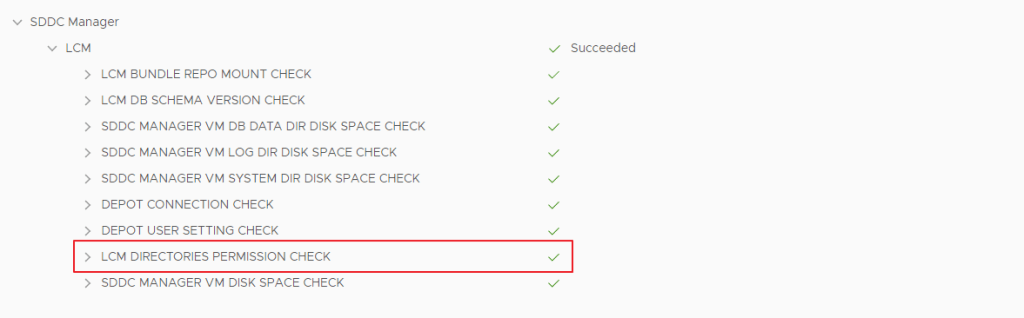
The LCM Pre-Check Failed due to a directory permission issue for one of the lcm directory
Issue is that the pre-check says that the directory “/var/log/vmare/vcf/lcm/upgrades/<long code directory>/lcmAbout” owner is root but the owner needs to be user vcf_lcm
This is how I resolved the issue:
Login into SDDC Manager as user vcf, do su and provide the root password
then go to the following directory “/var/log/vmware/vcf/lcm/upgrades/<long code directory as displayed in the lcm error on sddc manager>
chown vcf_lcm lcmAbout
chmod 750 lcmAbout
The above two commands will change the owner from root to vcf_lcm and also provide the required permissions to the folder so the pre-check can complete.
The full screenshot of what I performed is below:
Commands to change owner to vcf_lcm and to provide the required permissions for the folder lcmAbout
Once you perform the commands above, you can run the pre-check and this time it will proceed successfully as shown below
Hope this article helps if you come across this issue with sddc manager upgrade from VCF 3.10.2.2 to 3.11
VMware has finally realeased an patch version for VCF 3.x and the version is 3.11. You can only download this as a patch form from the SDDC Manager. You can Upgrade to version 3.11 from 30.10.2.2 or VCF 3.5 or later.
Security fixes for Apache Log4j Remote Code Execution Vulnerability: This release fixes CVE-2021-44228 and CVE-2021-45046. See VMSA-2021-0028.
Security fixes for Apache HTTP Server: This release fixes CVE-2021-40438. See CVE-2021-40438.
Improvements to upgrade prechecks: Upgrade prechecks have been expanded to verify filesystem capacity, file permissions, and passwords. These improved prechecks help identify issues that you need to resolve to ensure a smooth upgrade.
This also resolves the following Security Advisory VMSA-2022-0004 which deals with several vulnerabilities in esxi 6.7 hosts
This also resolves the vulnerability in VCF SDDC Manager 3.x according to the security advisory VMSA-2022-0003
This version also addresses the heap-overflow vulnerability in esxi hosts according to the security advisory VMSA-2022-0001.2
The Updated product versions according to the BOM for VCF 3.11 are
Hope this post helps for the teams who have VCF 3.10.x and waiting for the long awaited log4j patch instead of an workaround.
NOTE: These Reference Guides and their versions are for NON VXRAIL implementations. They are valid for Regular VCF Implementation with VSAN Ready nodes.








 Hyperconverged Infrastructure & Virtualization